Bash, PowerShell, session lifecycle, persistent files, the Cloud Shell editor, preinstalled tools, practical scenarios, and operating limits.
Suggested study time: 20 minutes • Intermediate level • Original rewrite based on the supplied Microsoft Learn module
By João Ricardo Dutra••Complete original content
1. Introduction and learning goals
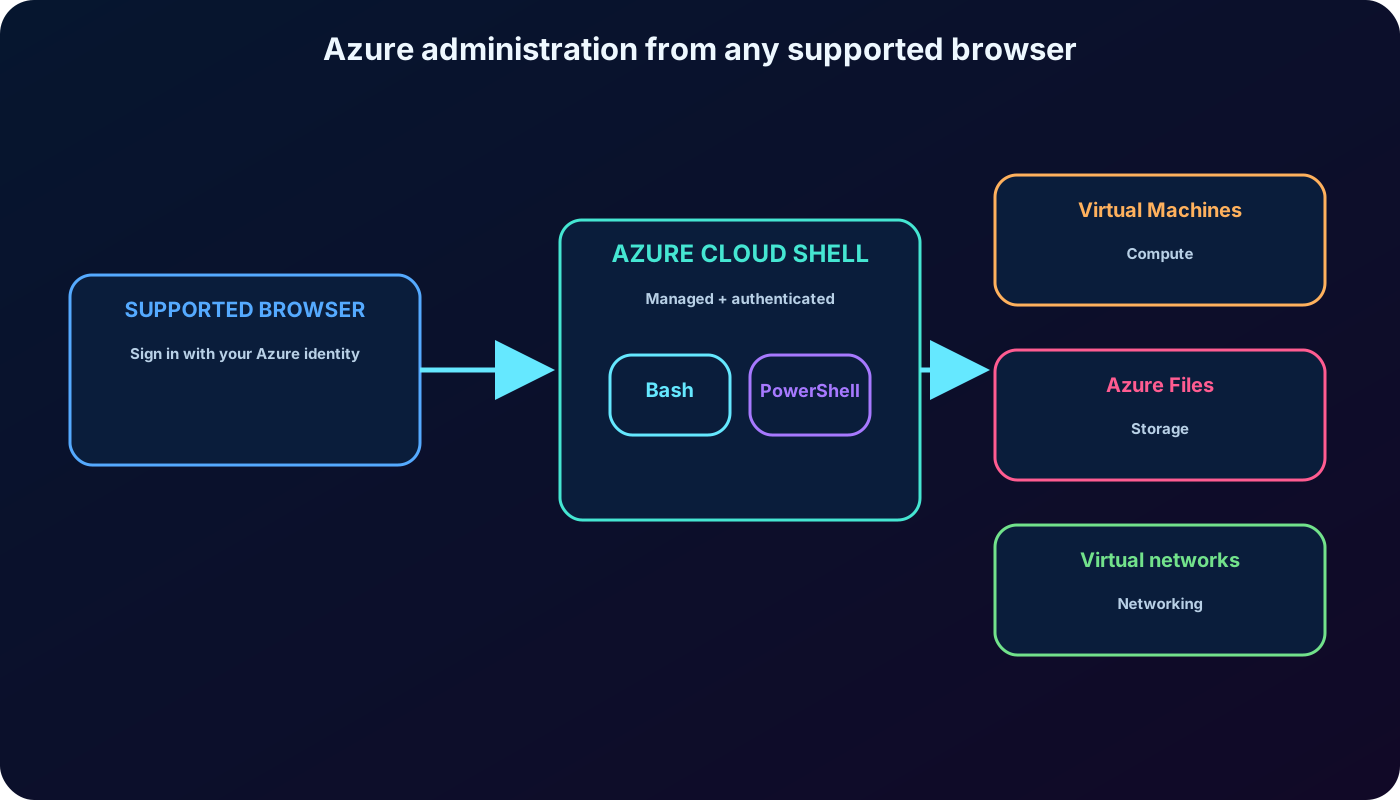
gives administrators an authenticated command line in a standards-compliant browser. Instead of preparing a local workstation with the Azure CLI, Azure PowerShell, modules, and supporting utilities, you can start a managed Bash or PowerShell environment and work with the Azure resources your identity is permitted to access.
Imagine that you administer Contoso cloud infrastructure, which includes ,, networking, and other services. Operational work does not always arrive while your managed laptop is nearby. A browser on another computer - or even a mobile device for a short intervention - can become a secure entry point to the tools you need.
Learning objectives
Describe and the functionality supplied by the service.
Decide whether Cloud Shell fits an organization and a specific administrative task.
Explain how a session starts, which shell experiences are available, and when it ends.
Persist scripts, SSH keys, and other files so they remain available across sessions and devices.
Recognize the included tools, editor workflow, and operational limitations.
Cloud Shell turns a browser into a managed Azure command-line workstation without making the browser device the administrative host.
2. What provides
Cloud Shell is an interactive terminal managed by Microsoft. After you sign in, the session inherits the permissions of your Azure account, so the commands you can run and the resources you can reach remain governed by the same identity and access controls used elsewhere in Azure.
Microsoft maintains the environment and keeps the Azure CLI and Azure PowerShell tooling current. The service is preconfigured, automatically authenticated, and available from a browser, which removes routine local setup and module-maintenance work.
Core capabilities of .
Capability
What it means for the administrator
Browser access
Start an Azure-focused command line without installing a local shell toolchain.
Bash or PowerShell
Choose the command experience that best matches the task and your skills.
Authenticated context
Operate only within the permissions and subscriptions exposed to the signed-in identity.
Managed tooling
Use Microsoft-maintained versions of Azure CLI, Azure PowerShell, and common utilities.
Persistent storage
Keep SSH keys, scripts, and working files outside the temporary session host.
Integrated editor
Create or adjust files without moving them to a separate desktop editor.
Cloud Shell infrastructure uses double encryption at rest by default. No extra step is required to enable that platform protection. The shell account itself behaves as a regular Linux user rather than a privileged administrator.
3. Access points and session lifecycle
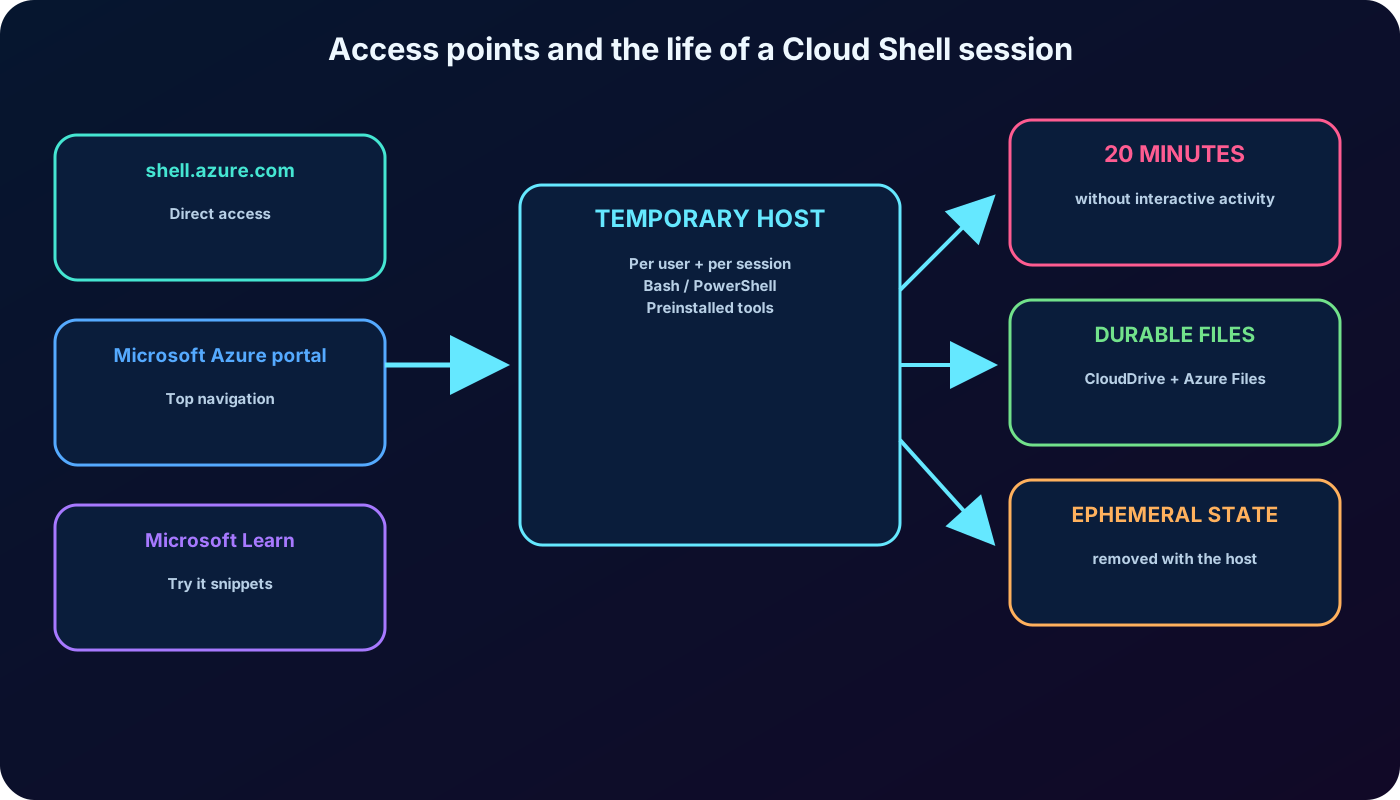
The exported module highlights three entry points: the direct address at shell.azure.com, the Cloud Shell control in the , and runnable command snippets in Microsoft Learn. Current Microsoft documentation also lists Azure CLI and Azure PowerShell documentation, the Azure mobile app, and the Azure Account extension for as access points.
Open https://shell.azure.com and authenticate directly.
Launch Cloud Shell from the top navigation of the .
Use a Try it experience beside a compatible Microsoft Learn command snippet.
Use another currently supported Microsoft entry point when it fits the workflow.
Starting a session allocates a temporary host for that user and session. The host is prepared with Bash, PowerShell, and administrative tools. After selecting a shell, you can immediately inspect and manage the Azure resources allowed by your account.
A session stops after 20 minutes without interactive activity. The temporary machine state disappears, so a new session must be created before you continue. Files stored in persistent Cloud Shell storage survive this transition; files left only on ephemeral storage do not.
The browser is only the entry point. A managed temporary host runs the shell, while durable files live separately.
4. A realistic on-call recovery scenario
During weekend on-call duty, an application upgrade leaves an Azure virtual machine unresponsive. Developers can reach the guest only while it is healthy and have not been granted access to the underlying hosting administration. The Azure administrator must diagnose and restore the machine.
The administrator is away from the usual workstation but has a laptop with a browser. They sign in to the organization, open Cloud Shell from the , attach the relevant share, retrieve diagnostic scripts, inspect the virtual machine, and perform the remediation. The workload returns to service without installing an administrative toolchain on the borrowed device.
The identity still needs the necessary Azure permissions; Cloud Shell does not elevate access.
Scripts must be in persistent storage if they are expected to be available away from the normal workstation.
The scenario suits interactive recovery work, not a long unattended operation.
5. Persistent scripts, files, and storage
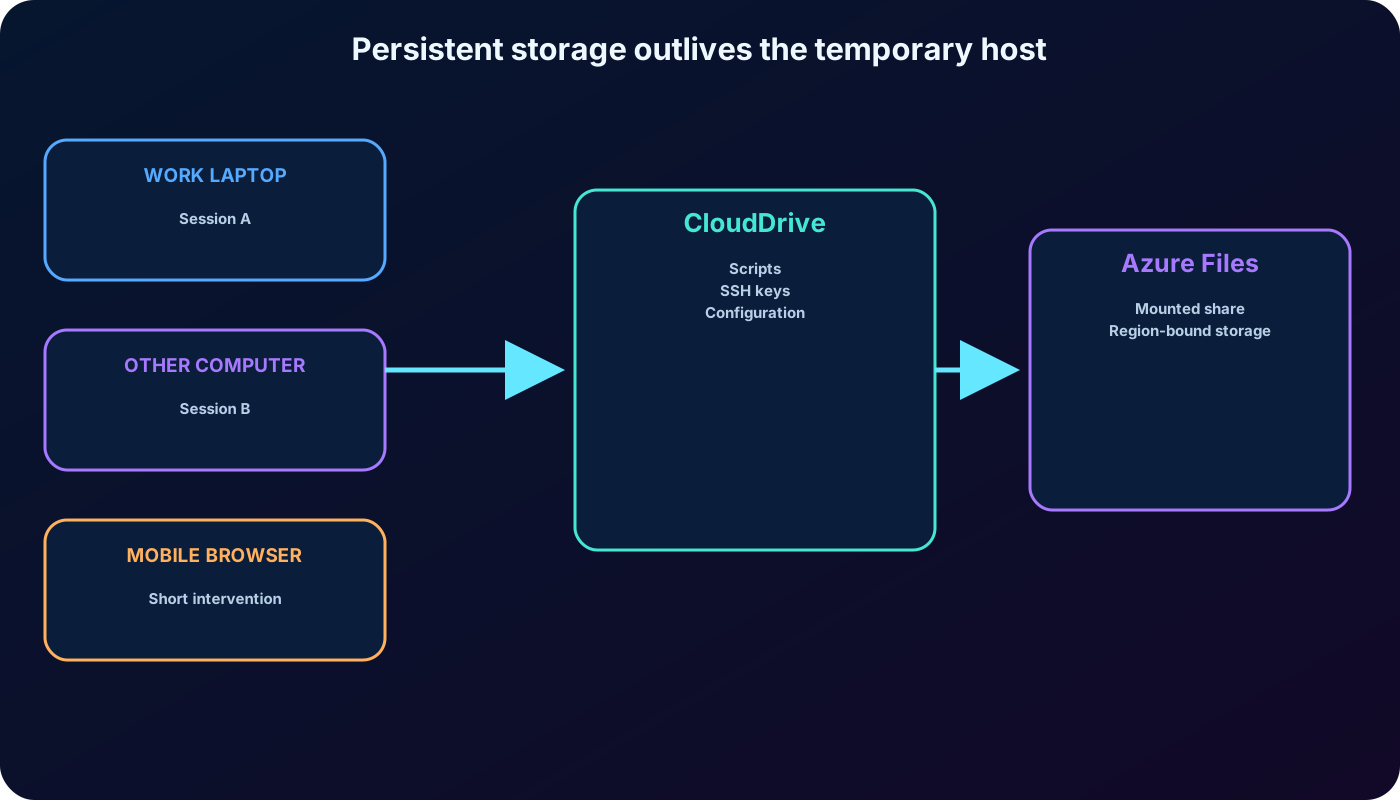
Because the session host is temporary, reusable content belongs in persistent storage. Cloud Shell can use a CloudDrive backed by an share to preserve scripts, SSH keys, configuration files, and other working assets between sessions.
Files can be uploaded and downloaded from the Cloud Shell interface, then used normally from Bash or PowerShell. A file saved today can be reopened in a later session and from a different device. Current Microsoft documentation describes a 5-GB file share for the standard persistent setup; storage consumption is billed at the regular Azure storage rates.
You can also mount an share and work with its contents. is associated with a region, so designs that require copies in several regions need their own backup or synchronization plan. Never assume the temporary host itself is the durable copy.
Persistent storage separates reusable files from the session host, making cross-session and cross-device administration possible.
6. Editing files inside Cloud Shell
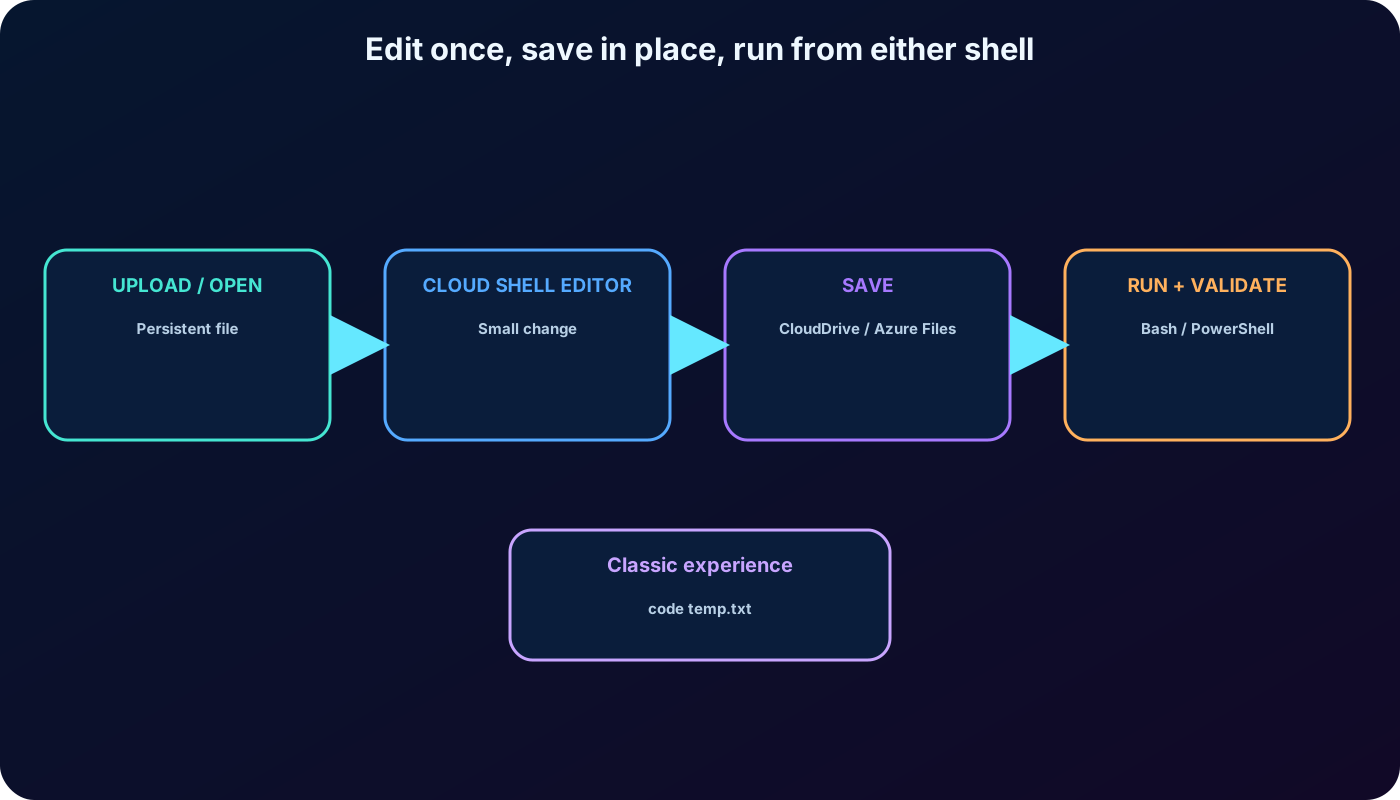
Cloud Shell includes an integrated graphical text editor. You can select the braces icon in supported interfaces or open a file from the command line. This is useful for small script adjustments because the file can be changed and saved directly where the shell will execute it.
code temp.txt
The supplied export notes that the code command belongs to the Classic Cloud Shell experience and points to More > Settings > Go to Classic version. Microsoft now documents both current and Classic editor experiences, so verify which interface is active before relying on a particular control or command behavior.
Upload a file when the durable copy starts elsewhere.
Open it in the integrated editor and make the required change.
Save directly to CloudDrive or the mounted share.
Run and validate the script from Bash or PowerShell.
Download or synchronize a copy when another system must retain it.
Editing in place avoids the repeated download-edit-upload cycle for small operational changes.
7. Preinstalled tools and add-ons
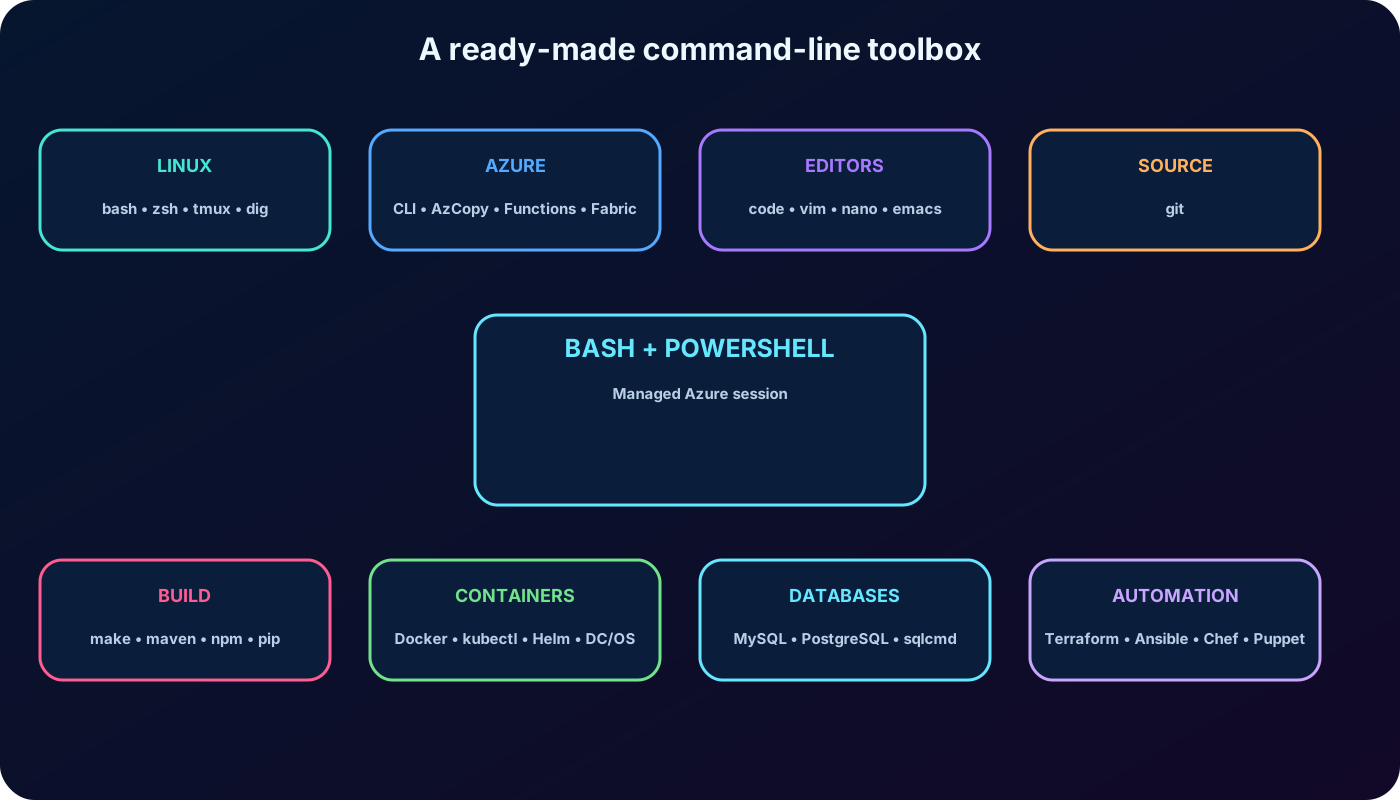
Cloud Shell is more than the two shell interpreters. It includes Azure tools, editors, source control, build systems, container utilities, database clients, and third-party infrastructure tools. The image is maintained over time, so use the commands documented by Microsoft when you need the exact current version inventory.
Tool inventory represented in the supplied module export.
Category
Included names
Linux tools
bash, zsh, sh, tmux, dig
Azure tools
Azure CLI, AzCopy, CLI, Service Fabric CLI, Shipyard, blobxfer
Text editors
code (Cloud Shell editor), vim, nano, emacs
Source control
git
Build tools
make, maven, npm, pip
Containers
Docker Machine, kubectl, Helm, DC/OS CLI
Databases
MySQL client, PostgreSQL client, sqlcmd utility, mssql-scripter
These additions let an administrator work with Docker and Kubernetes environments, databases, source repositories, build dependencies, and infrastructure-as-code workflows without first assembling a custom workstation.
The full inventory spans Azure administration, Linux utilities, editors, source control, build, containers, databases, and automation.
8. When Cloud Shell is a good fit
You need a secure interactive command line from a device that has a supported browser.
You cannot or do not want to install Azure CLI, Azure PowerShell, plug-ins, or add-ons locally.
You need Bash or PowerShell with an Azure-authenticated context immediately.
Scripts and working files must remain available between sessions and devices.
A small change can be completed efficiently in the integrated Cloud Shell editor.
A short on-call diagnostic or remediation task must be performed away from the managed workstation.
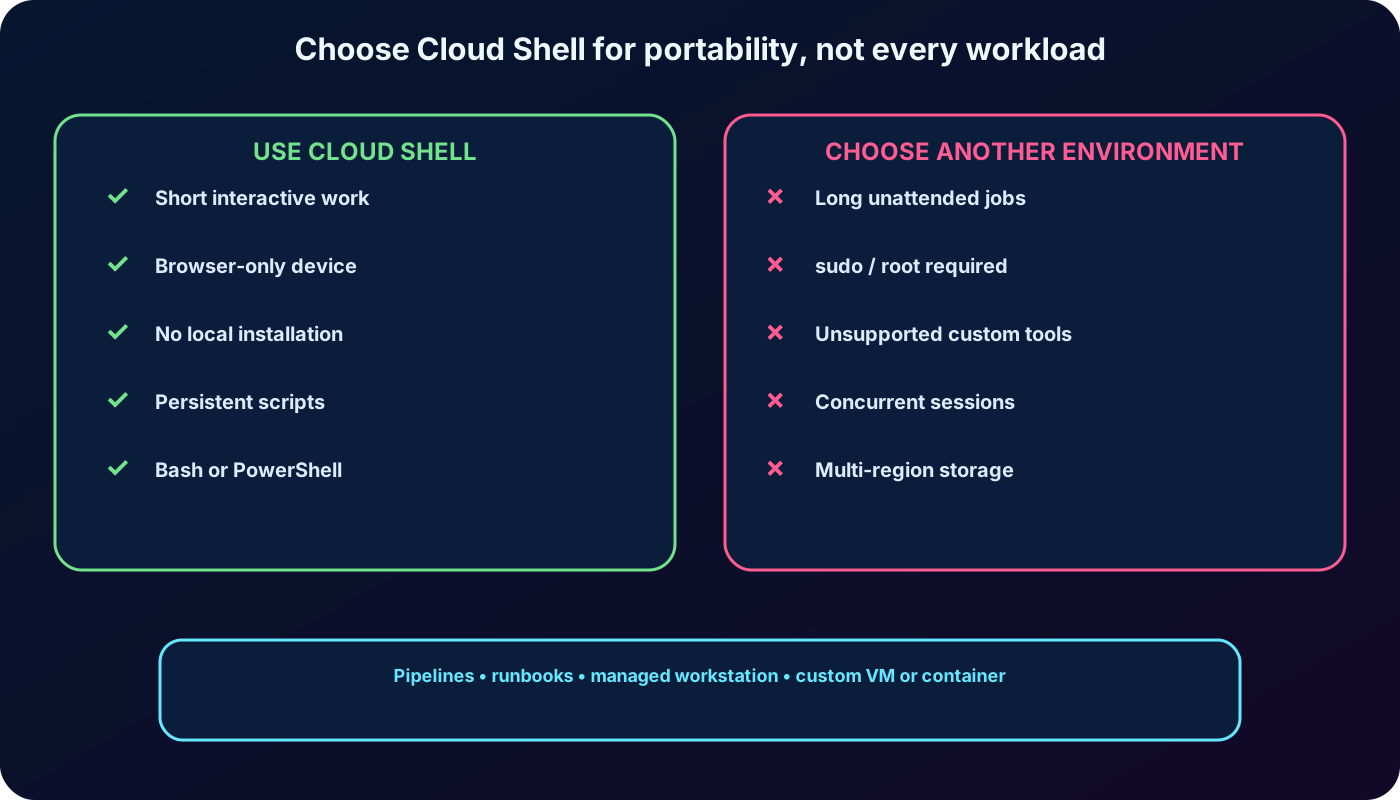
The strongest use case is a short, interactive, portable administration session. Cloud Shell improves access to tools, but it does not replace role assignments, change control, logging, or the organization's security requirements.
9. When to choose another environment
Long-running or unattended work: the interactive session can disconnect after 20 minutes of inactivity, losing nonpersistent state.
Privileged operating-system work: sudo and equivalent administrative permissions are not available in the standard environment.
Unsupported software installation: tools that need root access or a customized host belong in a purpose-built virtual machine or container.
Multi-region storage requirements: the Cloud Shell storage allocation is tied to one region and requires a separate synchronization or backup strategy.
Concurrent administration: Cloud Shell supports one active instance per user and is not designed for simultaneous sessions across multiple subscriptions or tenants.
Choose a managed workstation, automation service, pipeline, runbook, virtual machine, or container when the task needs durability, concurrency, privileged customization, or execution that must continue without an interactive browser session.
Use Cloud Shell for short browser-based administration; choose durable automation or a custom host for long, privileged, concurrent, or heavily customized work.
10. Knowledge check with explanations
Paraphrased assessment based on the supplied module.
Scenario
Best answer
Reasoning
An administrator on Windows 11 needs Cloud Shell without preparing a local Linux or remote desktop environment.
Sign in to Azure with Microsoft Edge or another supported browser and open Cloud Shell.
Cloud Shell is browser-accessible and does not require WSL, SSH, or RDP merely to start the service.
A frequently used script must be ready whenever a new Cloud Shell session begins.
Upload or save the script in CloudDrive.
The host is temporary; CloudDrive is the durable location designed to survive session replacement.
A stored management script needs a small correction before the next run.
Edit and save it directly with the Cloud Shell editor.
In-place editing avoids downloading the script, changing it elsewhere, and uploading it again.
11. Chapter summary
is a Microsoft-managed, authenticated browser terminal for Azure administration.
It offers Bash and PowerShell, managed Azure command-line tools, and a broad set of preinstalled utilities.
Each session uses a temporary host and ends after 20 minutes without interactive activity.
CloudDrive and preserve scripts, SSH keys, and other assets across sessions and devices.
The integrated editor supports direct changes to stored files.
Cloud Shell is best for short interactive work; long, privileged, concurrent, or highly customized tasks need another environment.