Microsoft Entra SSPR: password reset, hybrid writeback, and company branding
Learn the complete self-service password reset flow, authentication and registration policies, licensing, staged deployment, hands-on testing, password writeback, notifications, and branded sign-in experiences.
Suggested study time: 55 minutes • Intermediate • Original rewrite based on the supplied Microsoft Learn module and updated against current Microsoft Entra documentation
By João Ricardo Dutra••Complete original content
1. Reduce password-reset delays without weakening identity controls
A retail organization uses for employee access to software as a service applications, Microsoft 365, Azure, and other federated resources. Manual password resets consume help-desk time and leave users waiting. Self-service password reset (SSPR) lets an eligible user prove their identity and set a new password without an administrator performing the reset.
This chapter develops the complete administrative decision: determine whether SSPR is appropriate, configure a staged deployment, register and test a user, understand hybrid password writeback, and create a branded sign-in experience that helps users recognize the organization.
Explain password change, password reset, account unlock, and writeback as distinct scenarios.
Configure SSPR scope, authentication methods, registration, notifications, and help-desk customization.
Run the supplied group, user, registration, reset, branding, and cleanup exercises.
Apply current licensing, role, security, and centralized Authentication methods policy requirements.
SSPR restores productivity only after policy, licensing, registration, and identity verification all align.
2. Password change, reset, unlock, and writeback are different operations
Distinguish the four operations before choosing licensing or architecture.
Operation
Starting condition
Outcome
Password change
The signed-in user knows the current password.
A new cloud password replaces the known password.
Password reset
The user cannot sign in because the password is forgotten or expired.
SSPR verifies identity, then creates a new password.
Account unlock
The account is locked.
Supported policy can unlock it, with or without a password reset in hybrid scenarios.
Password writeback
The password is authoritative in on-premises Active Directory.
The cloud reset is securely written to the on-premises directory.
A signed-in cloud user can change a known password even with Free. Resetting a forgotten cloud password, however, requires an eligible SSPR license. A synchronized hybrid user additionally needs an edition that supports on-premises writeback and a configured Microsoft Entra Connect or cloud sync path.
3. Why SSPR improves operations and user productivity
SSPR moves a common, time-sensitive recovery task from the help desk to the user while retaining administrator-defined identity proof. Users can start from the password-reset portal, a “Can’t access your account?” or “Forgot my password” link, and supported Windows sign-in experiences. A successful reset restores access to applications that authenticate with .
Users do not wait for a support agent to become available.
Administrators spend less time on repetitive password tickets.
Notifications increase awareness of unexpected password activity.
A custom help-desk link gives users an approved escalation path when self-service cannot continue.
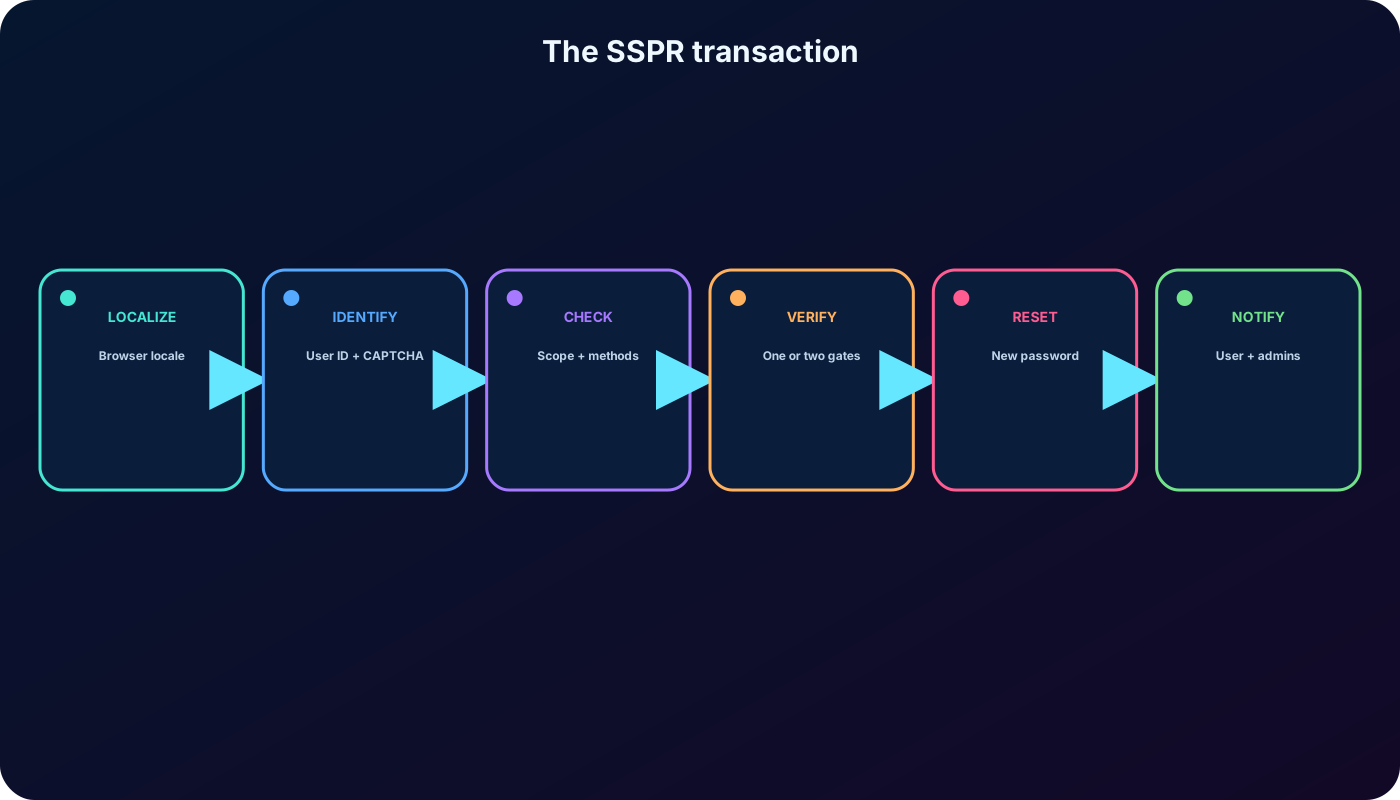
4. The end-to-end SSPR transaction
Localization: the portal uses the browser locale by default; a supported locale can also be requested with the mkt query parameter.
Identification and bot defense: the user supplies a user ID and completes CAPTCHA.
Eligibility checks: verifies SSPR scope, registered methods, required method count, administrator policy, and where the password is managed.
Authentication: the user satisfies one or two approved verification gates.
Reset or unlock: after successful proof, the user enters and confirms a compliant password or follows the allowed unlock path.
Notification: configured email messages tell the user, and in privileged scenarios the appropriate administrators, that a reset occurred.
The service stops and directs the user to support if SSPR is disabled for the account, too few permitted methods are registered, or an on-premises password cannot be written back. The portal does not bypass the organization’s recovery policy.
The password changes only after account eligibility and the required proof gates succeed.
5. Authentication methods: source module and current policy
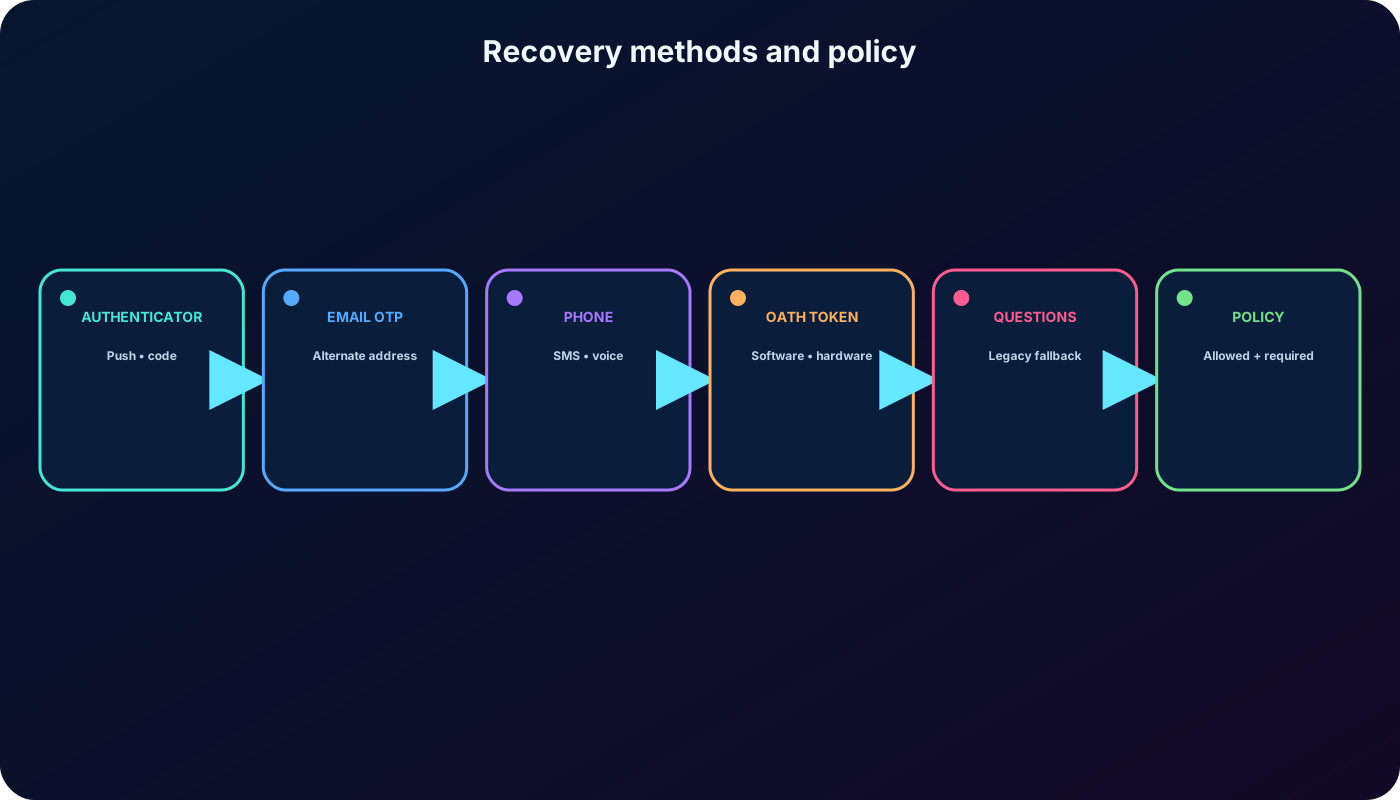
The supplied module presents six legacy SSPR choices. The concepts remain exam-relevant, but management of authentication methods in the legacy MFA and SSPR policy was deprecated on September 30, 2025. Current tenants should govern permitted methods through the centralized Authentication methods policy and combined security-information registration. Always confirm what the current tenant exposes before following an older screenshot.
Recovery methods covered by the source and their user experience.
Method
Registration
Reset proof
Microsoft Authenticator notification
Register the app and device in security information.
Approve or deny a push notification.
Microsoft Authenticator code / software OATH
Register an authenticator that generates one-time codes.
Enter the current code.
Alternate email / email OTP
Store an address outside the protected Microsoft Entra account.
Enter the code sent to that address.
Mobile phone
Register a mobile number.
Use an SMS code or, where policy and cloud support it, a voice call.
Office phone
Register a nonmobile number.
Answer the automated call and follow its prompt.
Security questions
Choose questions and record answers.
Correctly answer the configured number of questions.
Current documentation lists Microsoft Authenticator push, software and preview hardware OATH tokens, SMS, voice call, and email OTP as available SSPR families. Trial tenants can restrict phone-call behavior. Authentication-method availability also varies by account type, administrator policy, migration state, and Azure cloud.
Enable multiple strong, usable methods so loss of one device does not eliminate the recovery path.
6. Registration and the required number of proof methods
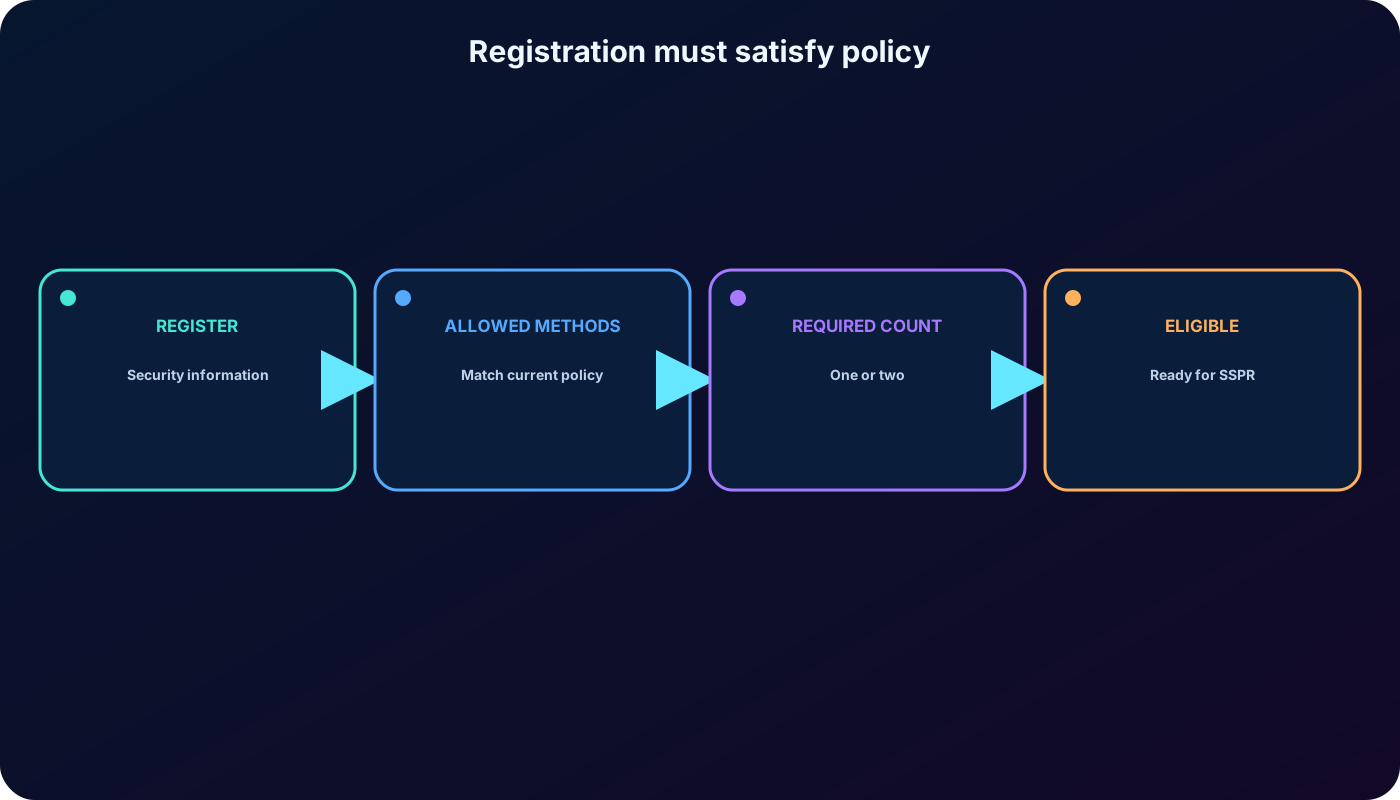
A user is registered for SSPR only after storing enough information for the number of methods the reset policy requires—not merely after opening the registration page. The administrator can require one or two methods for reset. Moving a policy from one to two methods immediately strands users who have only one eligible method until they add another.
Prompt enabled users to register security information during a supported interactive sign-in, or direct them to https://aka.ms/ssprsetup.
Keep contact data current. The reconfirmation interval can be set from 0 through 730 days; 0 means no periodic reconfirmation.
If security questions are used, set both the number registered and the number answered correctly for a reset.
Changing the allowed-method set can make previously registered users ineligible if their stored data no longer matches policy.
Registration is a policy result: registered data must match both the allowed methods and the required count.
7. Security guidance and administrator reset differences
Prefer phishing-resistant or app-based verification where the organization can support it, and provide at least one independent fallback. SMS can be abused through SIM swapping and message interception; answers to security questions can be discoverable. The source therefore recommends Microsoft Authenticator notification or code as the primary choice, with email or office phone for users without a mobile device, and treats security questions as a last resort used with another method.
Accounts assigned supported Azure administrator roles follow a stronger reset policy than ordinary users. They must satisfy a strong two-gate policy regardless of the normal user configuration, and security questions are not available to those administrator accounts. Test the ordinary experience with a non-administrator user so privileged-account requirements do not distort the result.
8. Notifications and a custom support route
SSPR communication controls.
Control
Recipients
Why it matters
Notify users on password resets
The affected user through primary, alternate, or when applicable UPN email.
Warns the owner about an unexpected reset so they can respond.
Notify all admins when another admin resets
Current documentation identifies Global Administrators as recipients.
Raises awareness of a privileged-account password event.
Customize help-desk link
Users who need assistance during registration or reset.
Routes failures to the organization’s approved email address or support page.
The help-desk value can be an email address or web URL. Treat notification delivery as a security dependency: verify sender allowlists, spam handling, monitored mailboxes, and incident procedures rather than assuming a successful configuration automatically produces an operational response.
9. SSPR licensing: match the feature to the edition
Current Microsoft licensing distinctions.
Scenario
Representative eligible edition
Cloud-only password change while the user knows the password
Free and higher.
Cloud-only forgotten-password reset
Microsoft 365 Business Standard or higher, or P1/P2.
Hybrid change or reset with on-premises writeback
Microsoft 365 Business Premium or P1/P2.
Company branding
P1/P2, Microsoft 365 Business Standard, or SharePoint Plan 1, subject to current terms.
Every user intended to benefit from SSPR must hold the appropriate license even if the service cannot yet technically prevent an unlicensed account from reaching a feature. The supplied introduction’s broad statement that free and pay-as-you-go subscriptions cannot use SSPR should therefore be interpreted by feature: free supports known-password change, but not cloud-only forgotten-password reset or hybrid writeback.
10. Hybrid password writeback and deployment choices
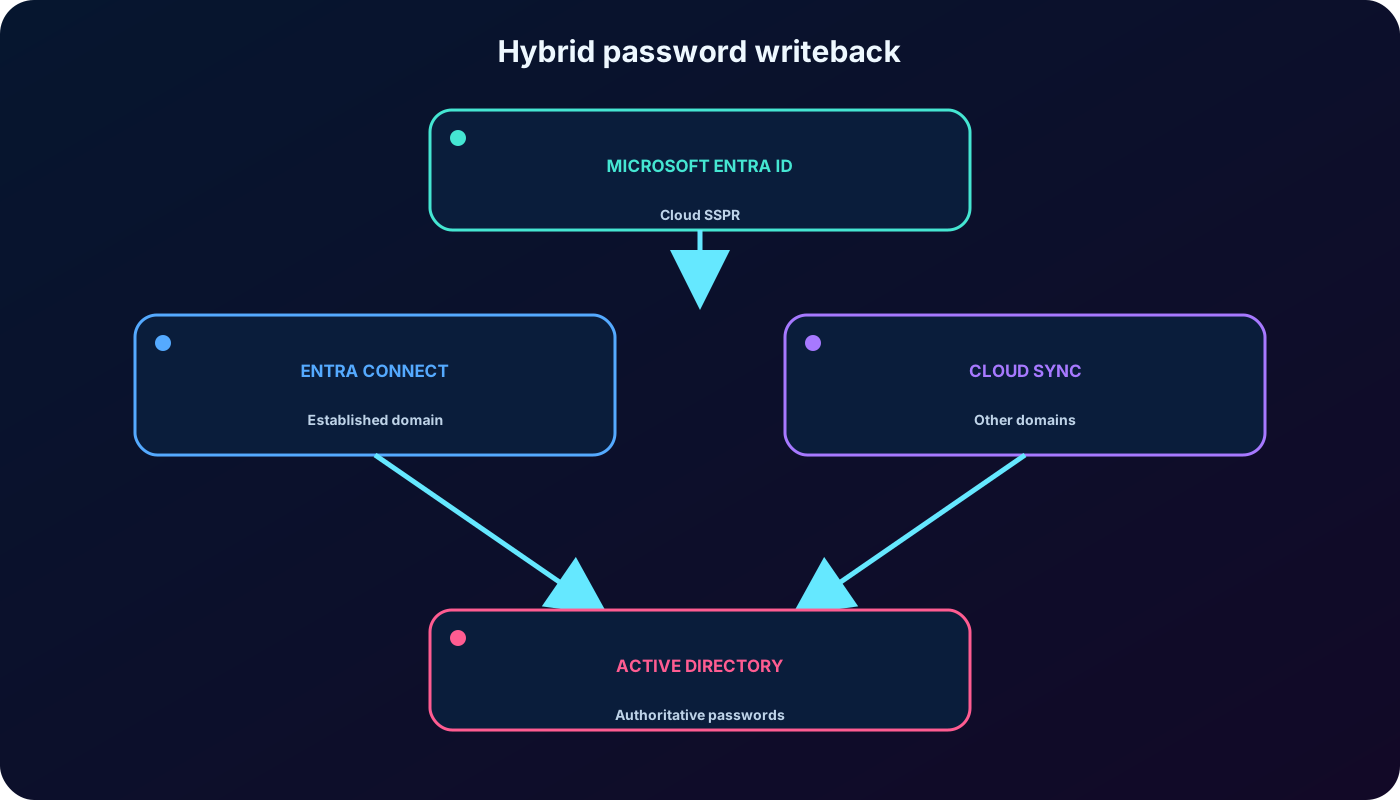
When on-premises Active Directory remains authoritative for a synchronized user’s password, a cloud-only update is insufficient. Configure password writeback through Microsoft Entra Connect or Microsoft Entra Connect cloud sync. Without writeback, federated, pass-through authentication, or password-hash-synchronized users whose passwords are managed on-premises are directed to their administrator.
Microsoft Entra Connect can serve an established connected domain.
Cloud sync can serve other user sets or disconnected domains and avoids relying on one Microsoft Entra Connect instance for the writeback path.
The two approaches can run side by side in separate domains—for example, an original domain and a newly acquired company domain.
Policy can allow an on-premises account to be unlocked without changing the password, or require the combined unlock-and-reset operation.
For federated users, password hash synchronization back to can take up to the synchronization interval after a successful on-premises reset. SSPR also cannot display the full on-premises password policy because Microsoft Entra Connect and cloud sync do not send those policy details to the cloud.
Choose the writeback agent per user population and domain; hybrid recovery depends on a healthy writeback path.
11. Plan a safe SSPR rollout
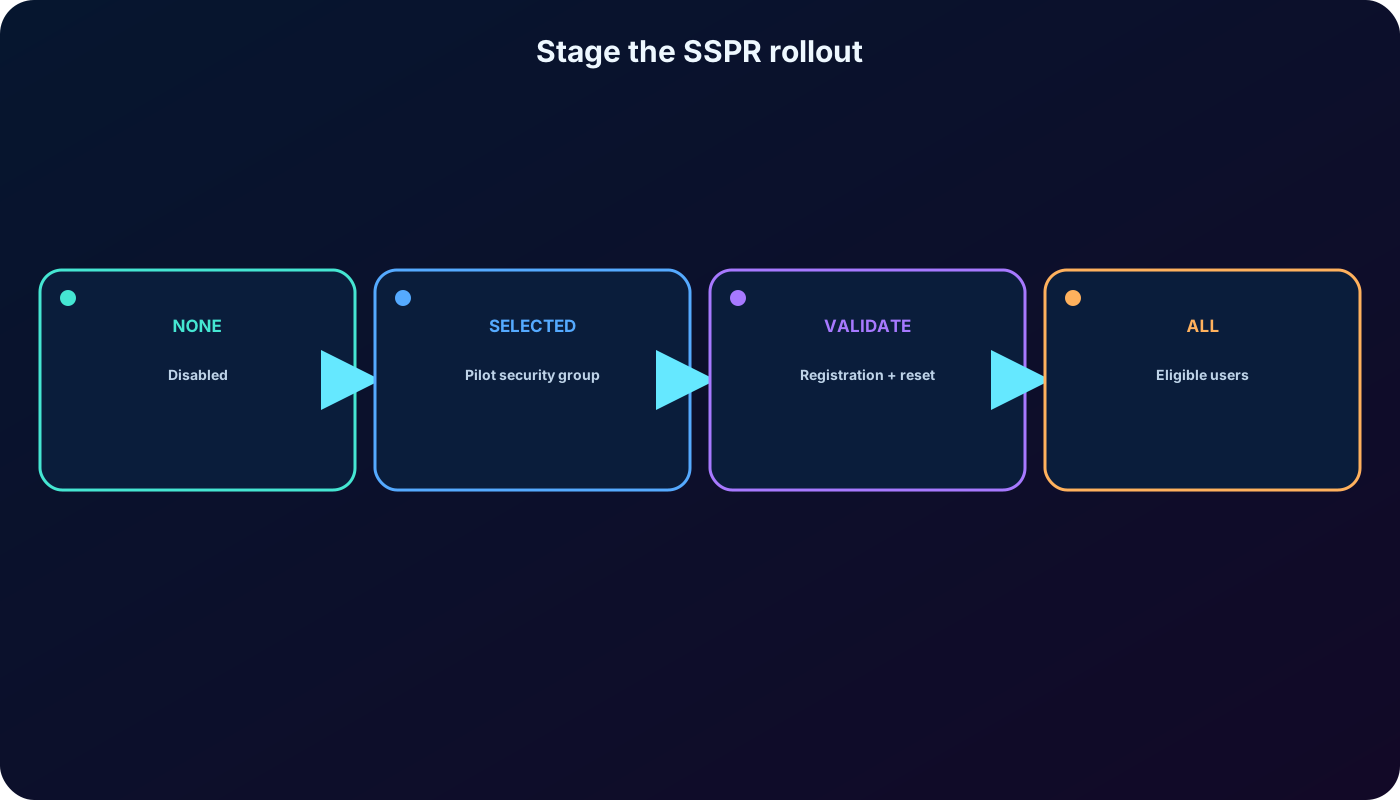
Before configuration, prepare a working Microsoft Entra tenant, an eligible license, an account with at least Authentication Policy Administrator, a licensed non-administrator test user, and a security group containing that user. The original exercise starts with about 20 marketing users; the key design is a controlled pilot before organization-wide activation.
Self service password reset enabled scope.
Value
Effect
Operational use
None
No ordinary users in the tenant can use SSPR.
Disabled or cleanup state.
Selected
Members of the chosen security group can use SSPR.
Pilot, validation, and staged communication.
All
All eligible users in the tenant can use SSPR.
Broad production rollout after the pilot.
The Microsoft Entra admin center currently allows one group to be directly selected for SSPR, while nested groups can support broader targeting. Document ownership, communications, support readiness, success criteria, and rollback before changing Selected to All.
Selected provides a controlled proving ground; All should follow evidence and communication.
12. Configure SSPR in the current administration experience
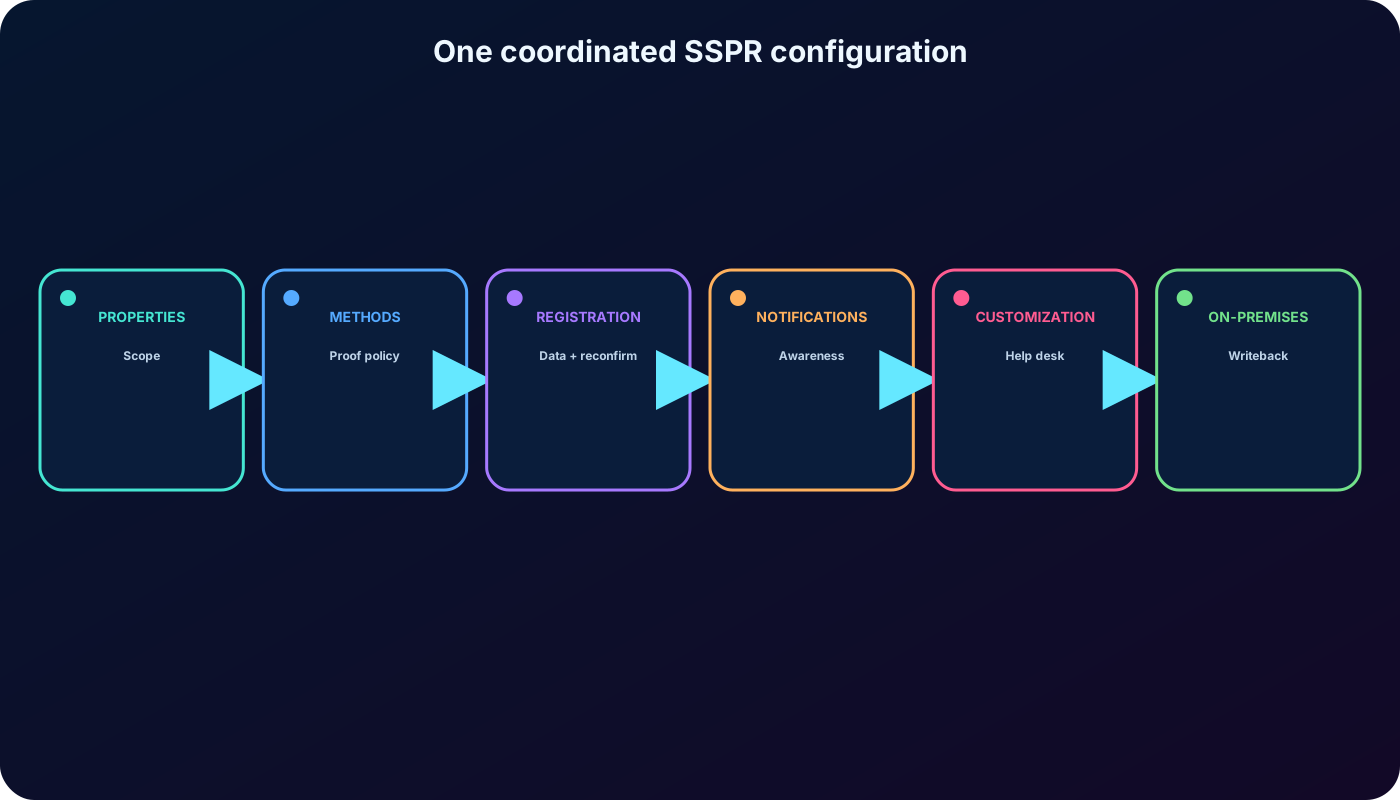
Sign in to the Microsoft Entra admin center with at least Authentication Policy Administrator and browse to Entra ID > Password reset. Older exports show > > Manage > Password reset; the settings remain conceptually equivalent even when labels or navigation move.
Properties: choose Selected for the pilot group or All for the intended population, then save.
Authentication methods: in a current tenant, govern available methods through the centralized Authentication methods policy and set the SSPR proof count where exposed.
Registration: decide whether enabled users must register during sign-in and how often they reconfirm their data.
Notifications: decide whether users and administrators receive password-reset messages.
Customization: replace the generic contact-your-administrator route with an approved help-desk email or URL.
On-premises integration: when required, verify password writeback and optional standalone unlock behavior.
A successful deployment is a coordinated policy set, not a single Enable switch.
13. Exercise: create the SSPR pilot group
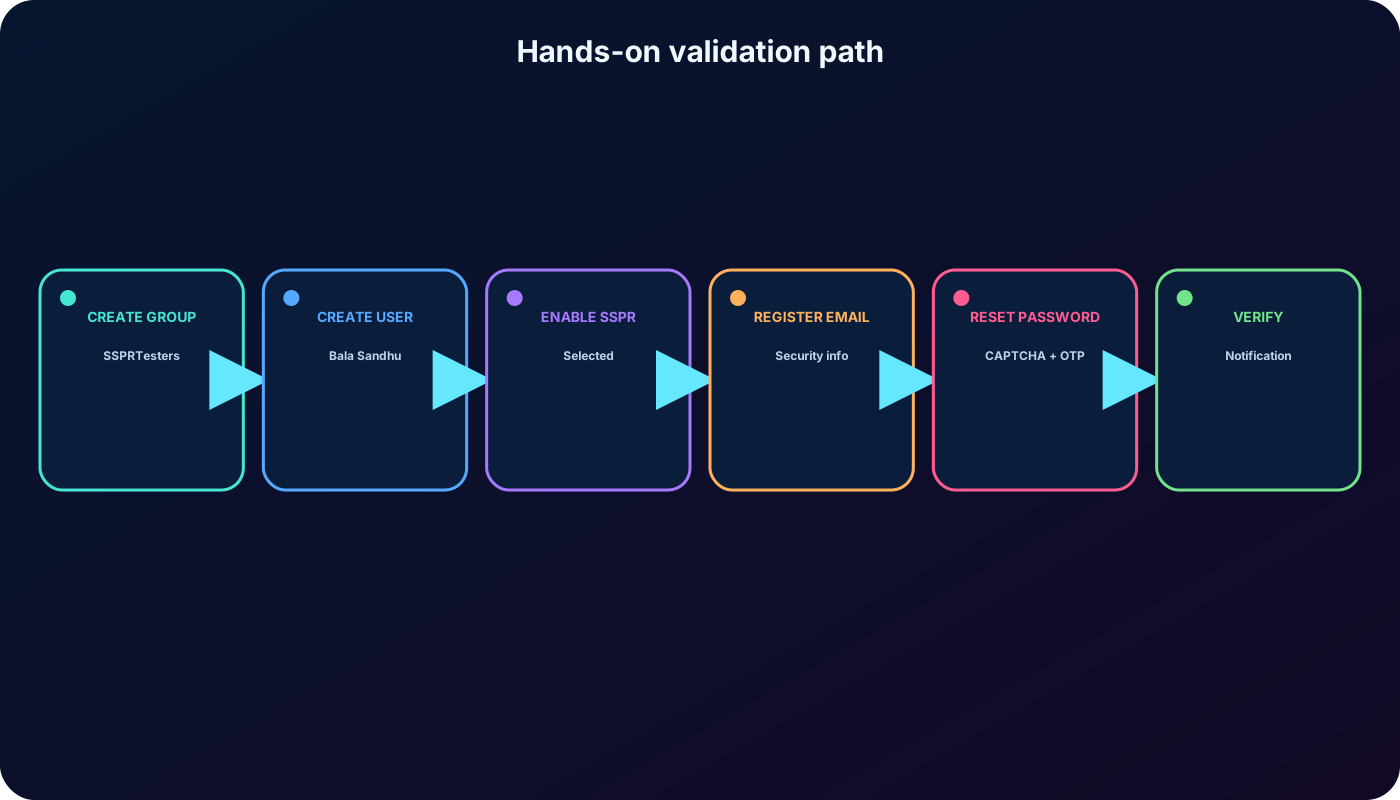
In the Microsoft Entra admin center, open Entra ID > Groups > New group and create the limited-rollout group. The names are laboratory examples; production naming should follow governance standards.
Group values from the supplied exercise.
Setting
Value
Group type
Security
Group name
SSPRTesters
Group description
Members are testing the rollout of SSPR
Membership type
Assigned
Review the values and select Create. Assigned membership makes the pilot population explicit and easy to audit during the exercise.
14. Exercise: create and assign the test user
Open Entra ID > Users > New user > Create new user.
Set user principal name to balas and display name to Bala Sandhu.
Copy the autogenerated temporary password to a protected temporary location; do not use ordinary Notepad for real production credentials.
On Assignments, add the SSPRTesters group.
Review and create the user, then verify the account has the license required for the tested SSPR feature.
Do not assign an administrator role to this test identity. Administrator accounts have stronger reset gates, so using one would test a different policy than the intended pilot-user experience.
15. Exercise: enable SSPR and register security information
Open Entra ID > Password reset > Properties, select Selected, choose SSPRTesters, and save.
Review registration and notification defaults. Ensure email OTP is permitted by the current Authentication methods policy for the test population.
Enable the custom help-desk route and enter admin@organization-domain-name.onmicrosoft.com, replacing the placeholder with the tenant domain; then save.
Open a private or incognito window and visit https://aka.ms/ssprsetup.
Sign in as balas@organization-domain-name.onmicrosoft.com with the temporary password and change it if prompted.
Open Security info, add Email, enter an external address, and verify it with the received code.
If the registration page reports that the administrator has not enabled the feature, recheck the selected group, group membership, license, method policy, and propagation. A private window also prevents an existing administrator session from contaminating the test.
Use a clean browser session and a nonadministrator account to test the policy that ordinary users receive.
16. Exercise: run the password reset
In a new private window, go to https://aka.ms/sspr.
Enter balas@organization-domain-name.onmicrosoft.com, complete CAPTCHA, and continue.
Choose the alternate-email option and request the verification code.
Enter the code, continue, set and confirm a compliant new password, then finish.
Record only the test result—not the password—in the change evidence, confirm the configured notification arrives, and close the session.
The knowledge check behind this exercise has two core answers: a user is registered after meeting the configured minimum number of allowed methods, and enabling SSPR lets an eligible user reset a password even when they cannot sign in.
17. Company branding: security signal, prerequisites, and limits
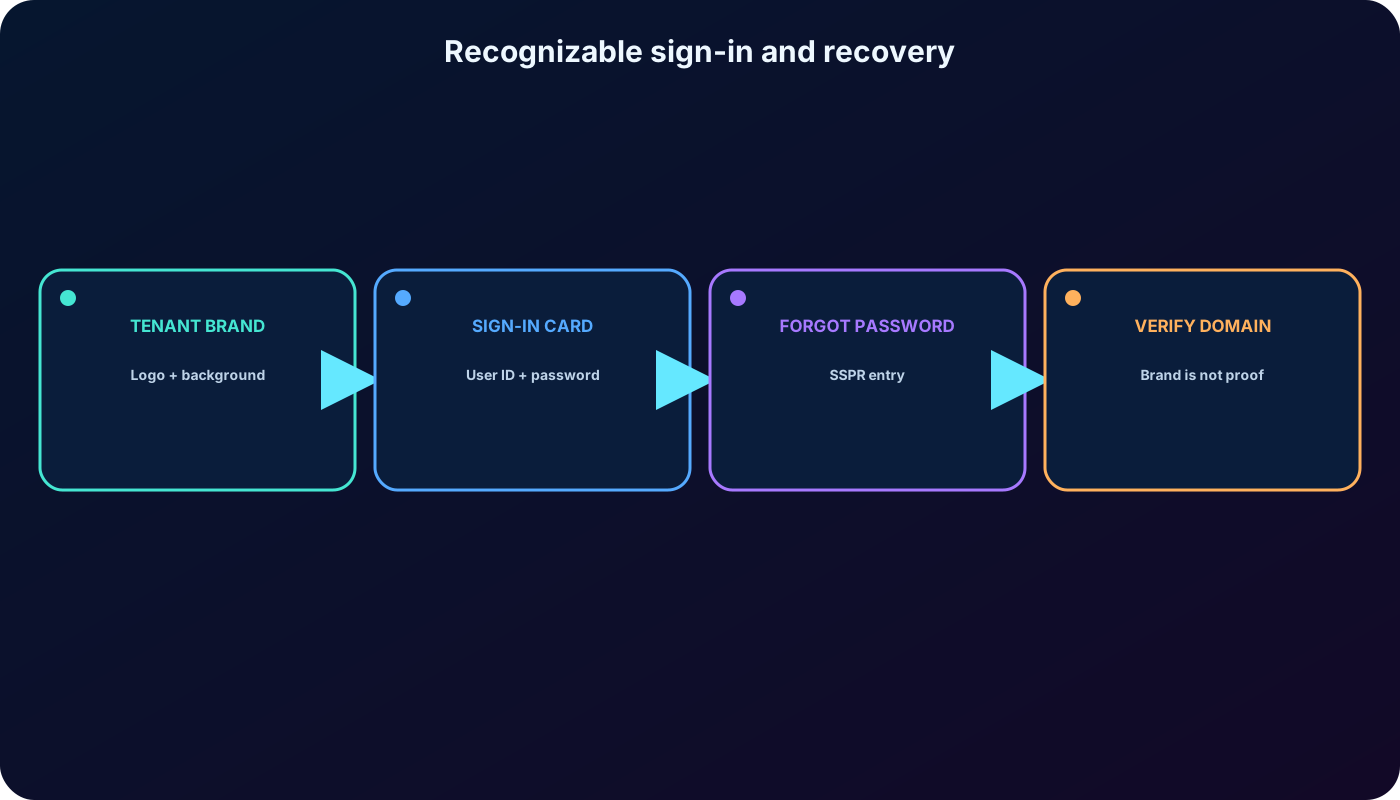
Company branding gives tenant sign-in and recovery experiences a consistent organizational identity. It can reassure users that they reached the expected tenant, but a logo is not proof of authenticity by itself; users must still verify the domain and follow anti-phishing guidance. The minimum current role is Organizational Branding Administrator, and an eligible license is required.
Image assets emphasized by the supplied branding exercise.
Asset
Dimensions
Maximum size
Format
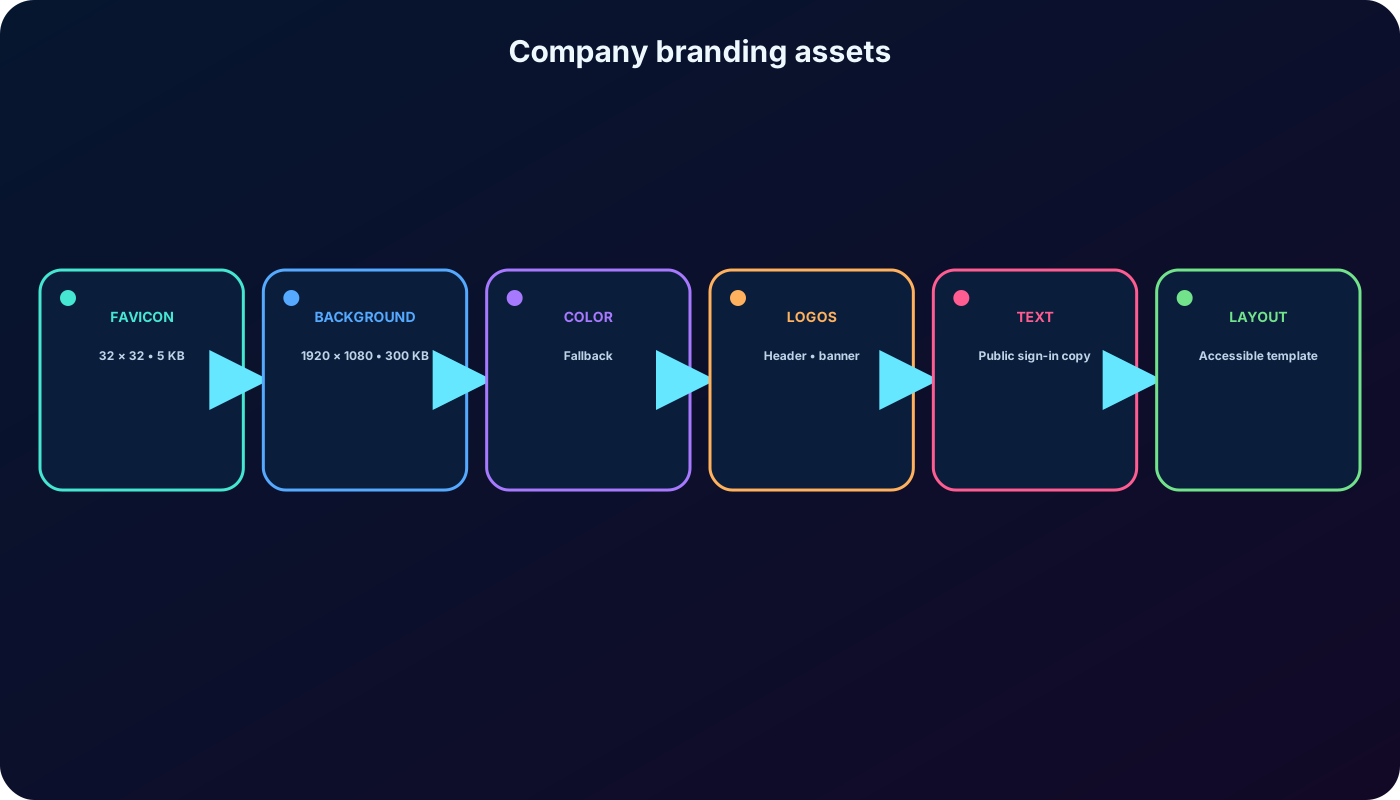
Favicon / small company logo
32 × 32 px
5 KB
PNG preferred; JPG accepted
Sign-in background image
1920 × 1080 px
300 KB
PNG preferred; JPG accepted
The background scales and crops with the viewport and may be covered by the sign-in box. Configure a background color as a fallback for slow connections. Current branding also supports layout templates, header and banner logos, light/dark square logos, footer controls, public sign-in text, localized browser-language variants, and limited custom CSS depending on tenant creation date and Microsoft’s deprecation schedule.
Every branding element is optional; accessibility, contrast, file limits, and safe public text matter more than decoration.
18. Exercise: configure and test the branded sign-in experience
Sign in to the Microsoft Entra admin center and switch directory if the current tenant is not the target organization.
Browse to Entra ID > Custom Branding. Older exports call this Company branding and show a Customize button.
In Basics, upload the 32 × 32 favicon and 1920 × 1080 background image, then choose or accept the page background color.
Review optional Layout, Header, Footer, and Sign-in form settings. Do not place secrets or internal-only data in public sign-in text.
Select Review + create, inspect the configuration, and create the default sign-in experience.
Open a new private browser session, sign in with Bala Sandhu through the tenant flow, verify the branding, and select Forgot my password to confirm that the recovery experience is coherent.
Branding for a multitenant SaaS or Microsoft application may appear only after the user enters an email address and discovers the home tenant. A tenant hint such as the whr query parameter can make the tenant-specific brand appear earlier in supported flows. Personal Microsoft accounts do not inherit the organization’s Microsoft Entra branding.
Test the ordinary sign-in, forgot-password, responsive, localized, and fallback-color experiences—not only the configuration preview.
19. Troubleshoot SSPR and branding methodically
Common symptoms and the first checks.
Symptom
Check first
Likely action
Administrator has not enabled this feature
Selected group, nested membership, user license, propagation, and private session.
Correct targeting or licensing and retest.
User has too few methods
Required count versus eligible registered data.
Register another permitted method or deliberately adjust policy.
Hybrid reset stops
Password ownership and writeback agent health.
Repair Microsoft Entra Connect/cloud sync writeback.
Email code or notification is missing
Address, method policy, spam controls, and delivery allowlist.
Correct data or mail handling and resend.
Brand does not appear initially
Home realm discovery and whether the tenant is known.
Enter the tenant user ID or use a supported tenant hint.
Image rejected or looks wrong
Pixel dimensions, file size, format, crop, contrast, and cache.
Optimize the asset and test multiple viewports.
20. Clean up the laboratory safely
Delete the Bala Sandhu test user from Entra ID > Users after recording the non-secret evidence required by the lab.
Delete the SSPRTesters group from Entra ID > Groups when no other test depends on it.
Set Entra ID > Password reset > Properties to None and save if SSPR should not remain enabled.
Remove or revert the custom branding when it was created only for the lab; a default branding record cannot be deleted, but its custom settings can be cleared.
If a Premium trial tenant was created only for this module, follow the tenant lifecycle and deletion rules after the trial expires.
Do not disable production SSPR or delete shared identities merely because the exercise says “clean up.” Confirm exact ownership and blast radius before each destructive action.
21. AZ-104 decisions and common traps
Knowing the current password is a change; forgetting or expiring it requires a reset.
A user is registered only when eligible stored methods meet the configured count.
Selected is the normal pilot answer; All is the production expansion after validation.
Use a non-administrator to test ordinary SSPR because administrator reset policy is stronger.
Security questions are unavailable to administrator accounts and are the weakest source-listed option.
A hybrid password managed on-premises requires a healthy writeback path.
Current method governance uses the centralized Authentication methods policy, not the retired legacy MFA/SSPR method controls.
Branding improves recognition but never replaces domain verification, MFA, Conditional Access, or anti-phishing training.
22. Summary, active recall, and official resources
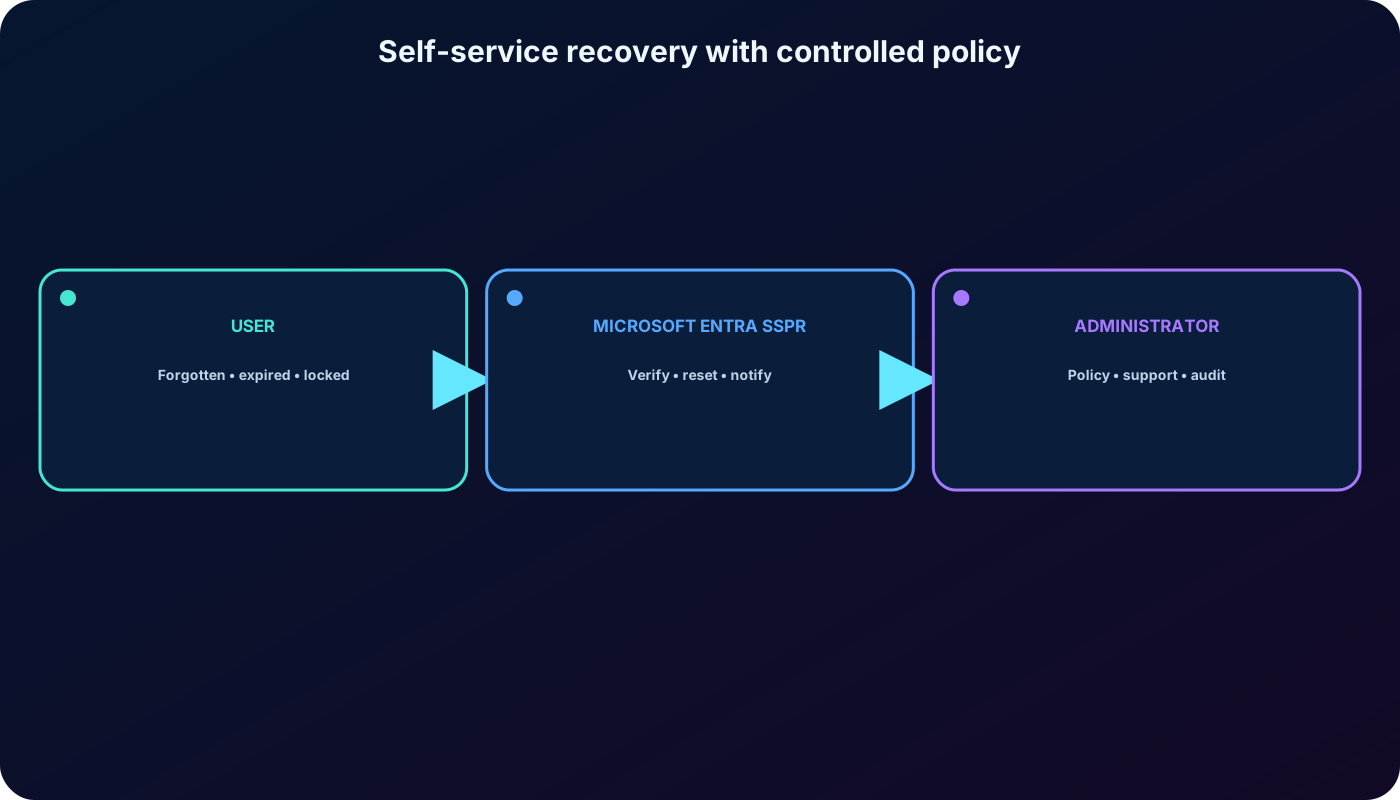
Microsoft Entra SSPR lets an eligible, registered user recover from a forgotten, expired, or locked password state after satisfying administrator-defined proof. A secure deployment combines licensing, staged scope, strong authentication methods, current registration data, notifications, a support route, hybrid writeback where required, and tested company branding.
Active-recall checklist
Can you explain why change, reset, unlock, and writeback have different requirements?
Can you trace all eligibility and proof gates before the new password is accepted?
Can you predict what happens after increasing the required methods from one to two?
Can you choose None, Selected, or All for a rollout scenario?
Can you identify when Microsoft Entra Connect or cloud sync is required?
Can you reproduce the pilot, registration, reset, branding, test, and cleanup sequence?