Users, groups, devices, licenses, and provisioning
Manage Microsoft Entra users and groups, compare device identity states, automate licenses, govern custom security attributes, and provision identities with SCIM or inbound APIs.
Suggested study time: 65 minutes • Intermediate level • Original rewrite based on the supplied Microsoft Learn module, updated against current documentation
By João Ricardo Dutra••Complete original content
1. Introduction and learning objectives
Moving a workload to the cloud also moves its identity boundary. Every employee, partner, and vendor needs a definitive identity, enough access to do assigned work, and no unnecessary permission to data, services, or operations. centralizes those decisions and adds single sign-on (SSO) and multifactor authentication (MFA) to protect identities and data.
Create, configure, delete, restore, and manage users.
Create security and Microsoft 365 groups and choose an appropriate membership model.
Assign and troubleshoot licenses for users and groups.
Compare Microsoft Entra registered, joined, and hybrid joined devices.
Use custom security attributes and automatic account provisioning.
The module assumes basic identity knowledge. Familiarity with Active Directory and Zero Trust is useful because its examples connect lifecycle management, least privilege, device compliance, and automated deprovisioning.
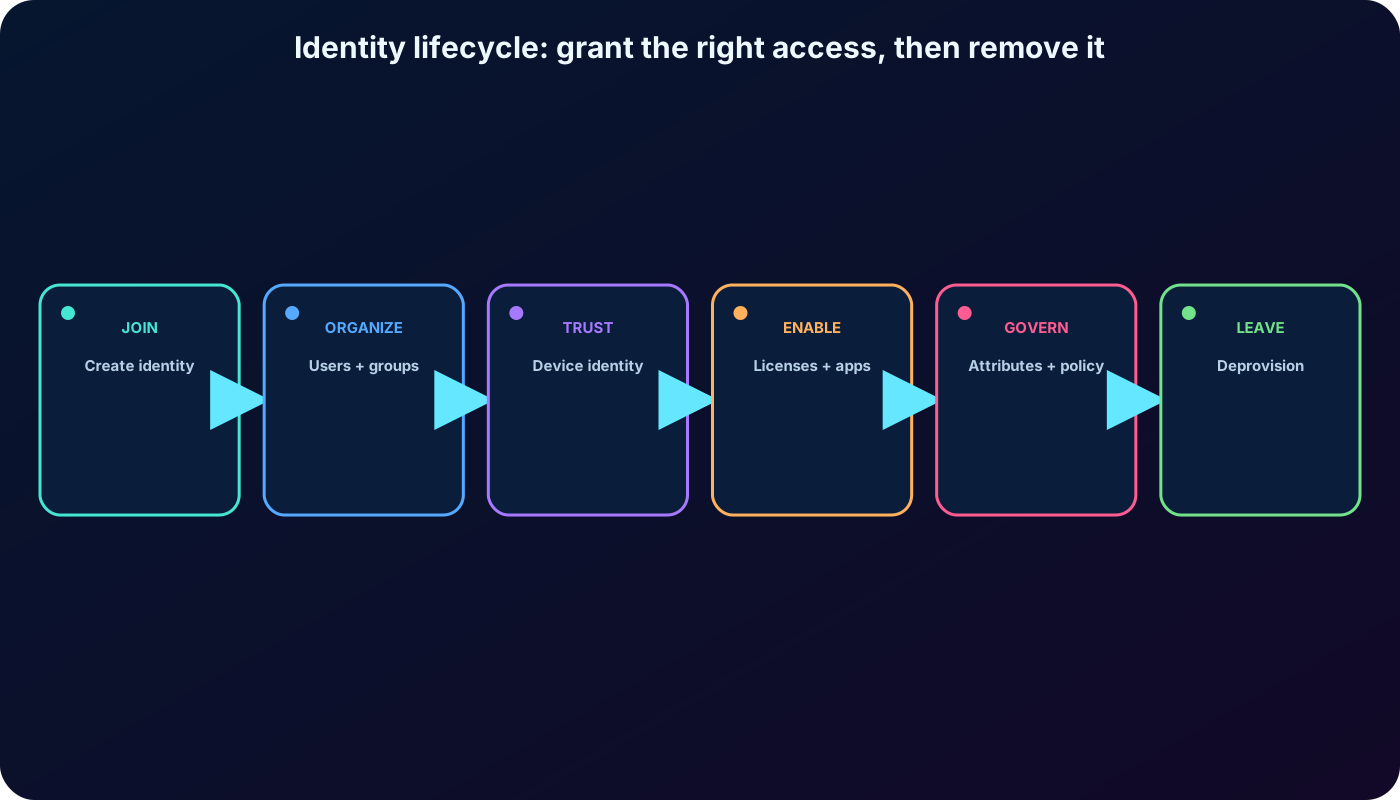
Cloud access is controlled by trustworthy identities and narrowly scoped entitlements that change with the person, group, device, and employment lifecycle.
2. User objects and identity sources
Anyone who needs access to a protected resource needs a user object in . The account holds information used during sign-in; after authentication, issues tokens whose claims and permissions help a resource decide what the user can access and do.
Use Identity > Users > All users in the Microsoft Entra admin center to inspect accounts and the User type column. The portal operates on one directory at a time. Directory + Subscription or Switch directory changes the active tenant; always verify the directory before creating or deleting an object.
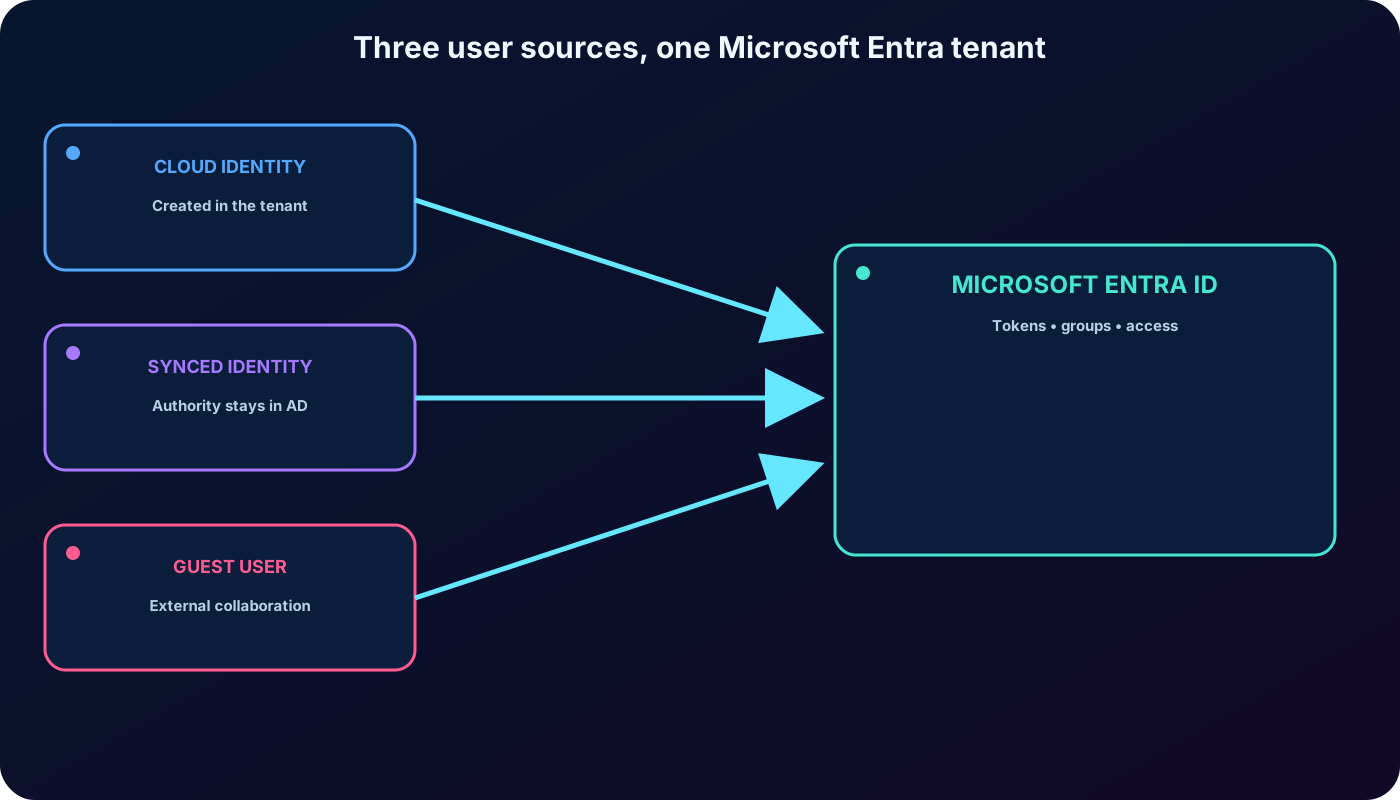
Three identity origins represented in the supplied module.
Identity
Source and lifecycle
Typical use
Cloud identity
Created in the current Microsoft Entra tenant, or represented from an external Microsoft Entra directory. A locally managed cloud account is removed when it is deleted from its source tenant.
Cloud-only employees and administrative accounts.
Directory-synchronized identity
Originates in on-premises Active Directory and synchronizes to . Windows Server AD remains its source.
Hybrid organizations that keep an on-premises identity authority.
Guest user
Originates outside the organization and appears as an invited user.
Time-bounded collaboration with suppliers, contractors, partners, or users of another identity provider.
Microsoft Entra Cloud Sync is recommended for many organizations because its lightweight, cloud-managed agent supports multiple disconnected forests. Microsoft Entra Connect Sync remains relevant for complex requirements such as device synchronization, advanced rules, or groups beyond Cloud Sync’s supported size. Remove guest access when the external relationship ends.
The identity source determines where authoritative attributes should be changed and how deletion or synchronization affects the cloud object.
3. Guided exercise: create a user and security group
The supplied exercise assumes at least the User Administrator role in a basic tenant. In the Microsoft Entra admin center, open Identity > Users > All users, choose New user > Create new user, and create the sample account below. Use a unique initial password and follow the tenant’s password and first-sign-in controls.
Rewritten sample values.
Setting
Value
User principal name
ChrisG with the tenant’s verified domain
Display name
Chris Green
Given name / surname
Chris / Green
Password
A unique temporary value generated for the exercise
Confirm the object appears under All users. Then open Identity > Groups > All groups, select New group, and create a Security group named Marketing with Assigned membership. Make your administrator account an owner and Chris Green a member. Confirm the group is listed before using it for access or licensing.
The original lab continues by assigning an available product license to Marketing from Billing > Licenses in the Microsoft 365 admin center. Select the product, choose Assign licenses, search for the group, and confirm the assignment. Current interfaces can place user and group assignment in the same panel, so follow the labels shown by the tenant.
4. Delete, restore, or permanently remove users
Select the checkbox beside one or more accounts in the Users list to perform a bulk operation. Opening an individual user page instead limits the command to that user. Choose Delete user and confirm the dialog.
A deleted user normally remains on Deleted users for 30 days. During that soft-deleted period, select the account and Restore user, then verify it has returned to All users with its recoverable properties. After the retention window, permanent deletion begins automatically. A permanently deleted account cannot be restored.
The export lists Global Administrator, User Administrator, Partner Tier-1 Support, and Partner Tier-2 Support as roles able to restore or permanently delete users. Role availability and least-privilege permissions evolve; verify the current role documentation and use the narrowest role that supports the operation.
5. Security groups, Microsoft 365 groups, and membership
Groups replace repeated one-by-one permission assignment with a managed boundary. Resource or directory owners assign access to the group, and membership changes determine who receives it.
Group choices.
Group type
Purpose
Members and administration
Security group
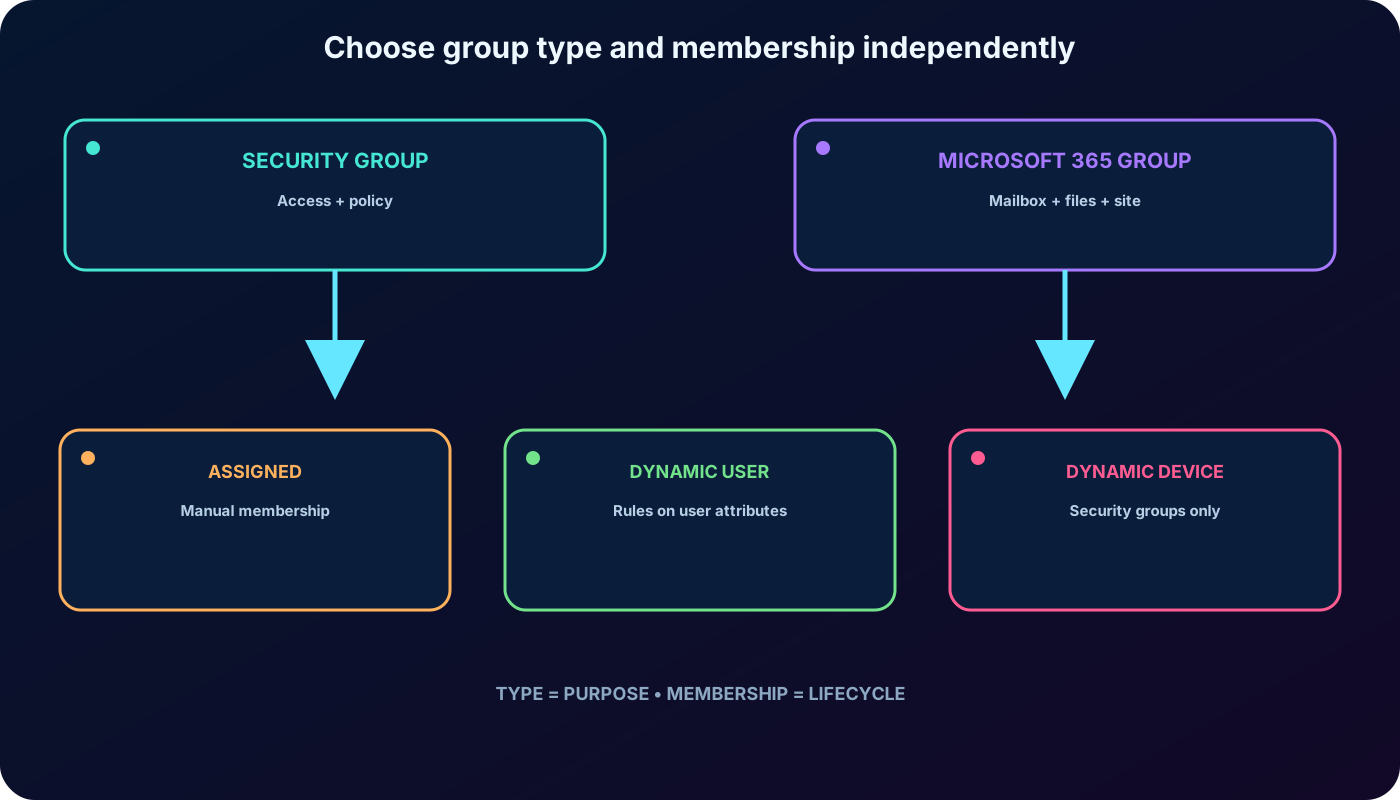
Controls access to shared resources, applications, roles, or security policy.
Can contain users, devices, service principals, and supported nested groups. Creation and sensitive use require appropriate administration.
Microsoft 365 group
Creates a collaboration workspace with shared mailbox, calendar, files, SharePoint site, and related services.
Contains users, can support guests, and may be created by users or administrators when tenant policy permits.
Membership type controls how members enter the group. Assigned membership is maintained manually. Dynamic User evaluates user properties such as department, job title, or location. Dynamic Device evaluates device properties and applies only to security groups; Microsoft 365 groups support dynamic users, not dynamic devices.
When an attribute changes, Microsoft Entra reevaluates dynamic membership rules and adds or removes matching objects. A rule such as department equals Marketing keeps a Marketing group aligned automatically. Audit who can modify every attribute used by a security-sensitive rule: access is only as trustworthy as the attribute’s write permissions.
Dynamic membership requires P1 or qualifying Intune for Education coverage for each unique user in dynamic groups. Current documentation does not require licenses for devices that belong to a device-based dynamic group.
Choose a group for its resource purpose, then choose membership rules that can be governed and audited safely.
6. Guided exercise: create a Microsoft 365 group
From Identity > Groups in the Microsoft Entra admin center, choose New group. Create a Microsoft 365 group named Northwest Sales with Assigned membership, set your administrator as an owner, and add a sample member. Confirm the group under All groups; a new group can take a short time and a refresh before it appears.
This exercise contrasts collaboration with access control. Northwest Sales receives Microsoft 365 collaboration resources, while the earlier Marketing security group is a reusable authorization boundary. Do not choose a collaboration group merely because it can contain the same people.
7. Device identity and the BYOD balance
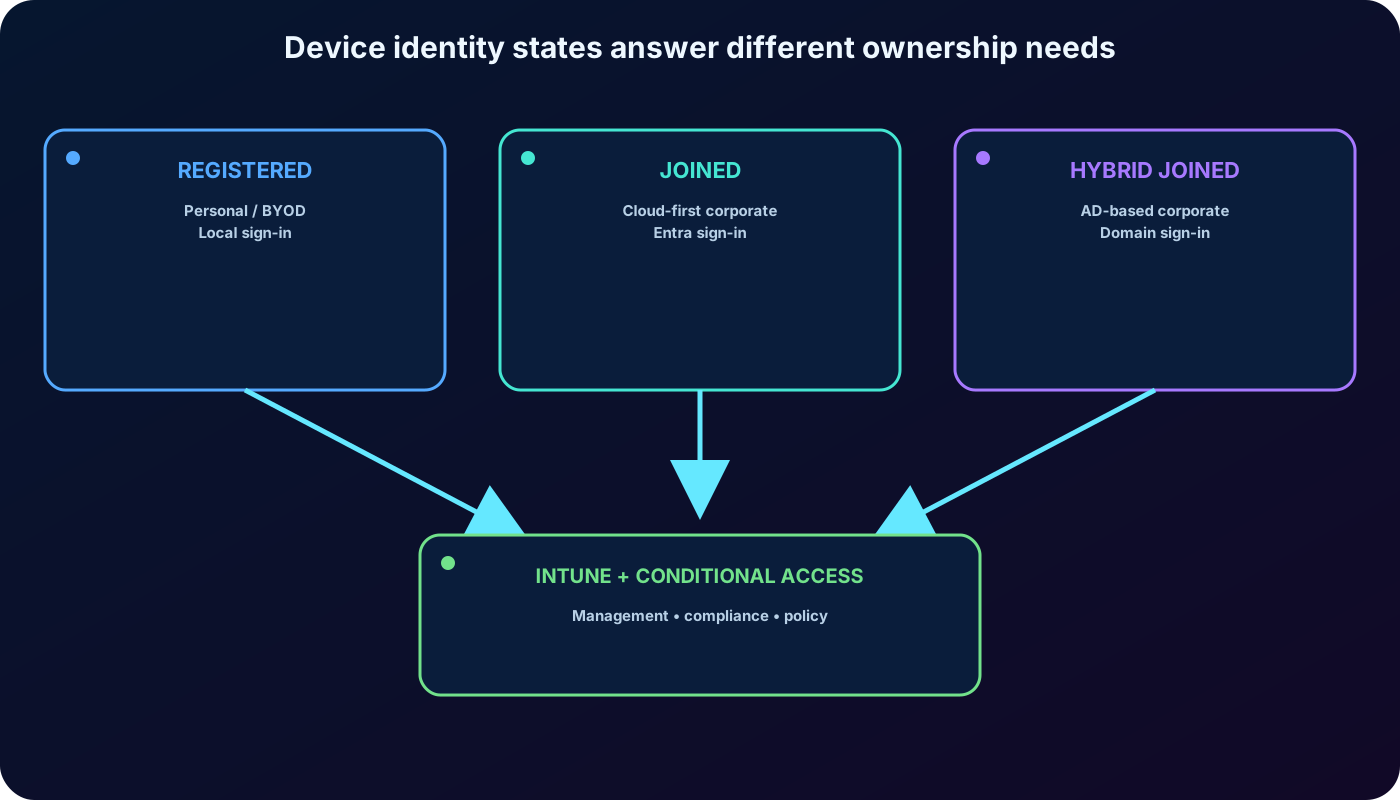
Device identity helps IT meet two competing goals: let people work from varied locations and devices, and protect organizational assets. supplies device SSO and identity signals. Microsoft Intune can add mobile device management (MDM), mobile application management (MAM), compliance rules, encryption, password requirements, security-software health, and Conditional Access decisions.
The three join states describe ownership, sign-in authority, and management integration—not simply whether the device appears in a portal. Operating-system support changes frequently, so verify the current matrix during deployment planning.
Registration attaches a work identity to a device; join makes Microsoft Entra the device sign-in authority; hybrid join retains the on-premises domain relationship.
8. Microsoft Entra registered devices
Registered-device profile from the module, reconciled with current documentation.
Dimension
Microsoft Entra registered
Definition
Registered with without requiring the organizational account to sign in to the operating system.
Primary scenario
BYOD and mobile-device access.
Ownership
User or organization.
Operating systems
Windows 10 or newer, macOS 10.15 or newer, iOS 15 or newer, Android, and supported Ubuntu or Red Hat Enterprise Linux releases.
Device sign-in
Local credentials, password, Windows Hello, PIN, or biometrics as supported by the platform.
Management
MDM such as Microsoft Intune and mobile application management.
Capabilities
SSO to cloud resources and Conditional Access using device compliance or app-protection signals.
A Windows user can sign in with a local or Microsoft account and attach a work account for organizational resources. Registration can happen when a work application is accessed or through Windows Settings. Intune policies can require encryption, password strength, updates, and a healthy device.
In the supplied scenarios, a home PC becomes eligible after registration and Intune compliance, while a rooted personal Android phone is blocked by a compliance-based Conditional Access policy. Registration does not transfer full ownership; policy should distinguish personal and corporate risk.
9. Microsoft Entra joined devices
Joined-device profile represented in the export.
Dimension
Microsoft Entra joined
Definition
Joined only to ; an organizational account signs in to the device.
Audience and ownership
Cloud-only or hybrid organizations; normally organization-owned.
Operating systems in the export
Windows 10/11 except Home, supported Windows Server VMs in Azure, and macOS 13 or newer preview. Current platform support also evolves for Apple and Linux devices.
Management
Microsoft Intune, or co-management with Microsoft Configuration Manager.
Capabilities
SSO to cloud and on-premises resources, Conditional Access, self-service password reset, and Windows Hello PIN reset.
Provisioning options include the out-of-box experience (OOBE), bulk enrollment, and Windows Autopilot. Administrators can publish applications and enforce encryption, password, software, and update settings. Joined devices can still authenticate to on-premises file, print, and compatible applications while connected to the organization.
Use Microsoft Entra join for cloud-first device deployment, remote branches with limited infrastructure, users focused on Microsoft 365 or SaaS, and populations such as contractors, seasonal workers, or students managed primarily in . It simplifies work-owned Windows deployment, cloud management, application access, and organizational sign-in.
10. Microsoft Entra hybrid joined devices
A hybrid joined device is joined to on-premises Active Directory and registered with . It retains the organizational AD account and existing domain management while gaining device identity, SSO, and Conditional Access in Microsoft Entra.
Hybrid profile from the module.
Dimension
Microsoft Entra hybrid joined
Audience and ownership
Organizations with an existing on-premises AD footprint; organization-owned devices.
Operating systems in the export
Windows 10/11 except Home and Windows Server 2016, 2019, and 2022.
Sign-in
Password or Windows Hello for Business.
Management
Group Policy, Microsoft Configuration Manager, or co-management with Microsoft Intune.
Capabilities
SSO to cloud and on-premises resources, Conditional Access, self-service password reset, and Windows Hello PIN reset.
Choose hybrid join when Win32 applications depend on AD machine authentication, when Group Policy must remain, or when established imaging workflows cannot yet be replaced. The export calls the older device writeback approach unsupported and points new hybrid designs toward Cloud Kerberos Trust. Current Microsoft guidance likewise treats Cloud Kerberos Trust as the strategic approach for on-premises SSO and Windows Hello for Business, while specific legacy certificate-trust designs can retain different dependencies.
11. License management and group-based assignment
Paid services such as Microsoft 365, Enterprise Mobility + Security, and Dynamics 365 require licenses for users who consume them. stores assignment state, while current administration occurs in the Microsoft 365 admin center or through Microsoft Graph PowerShell and APIs.
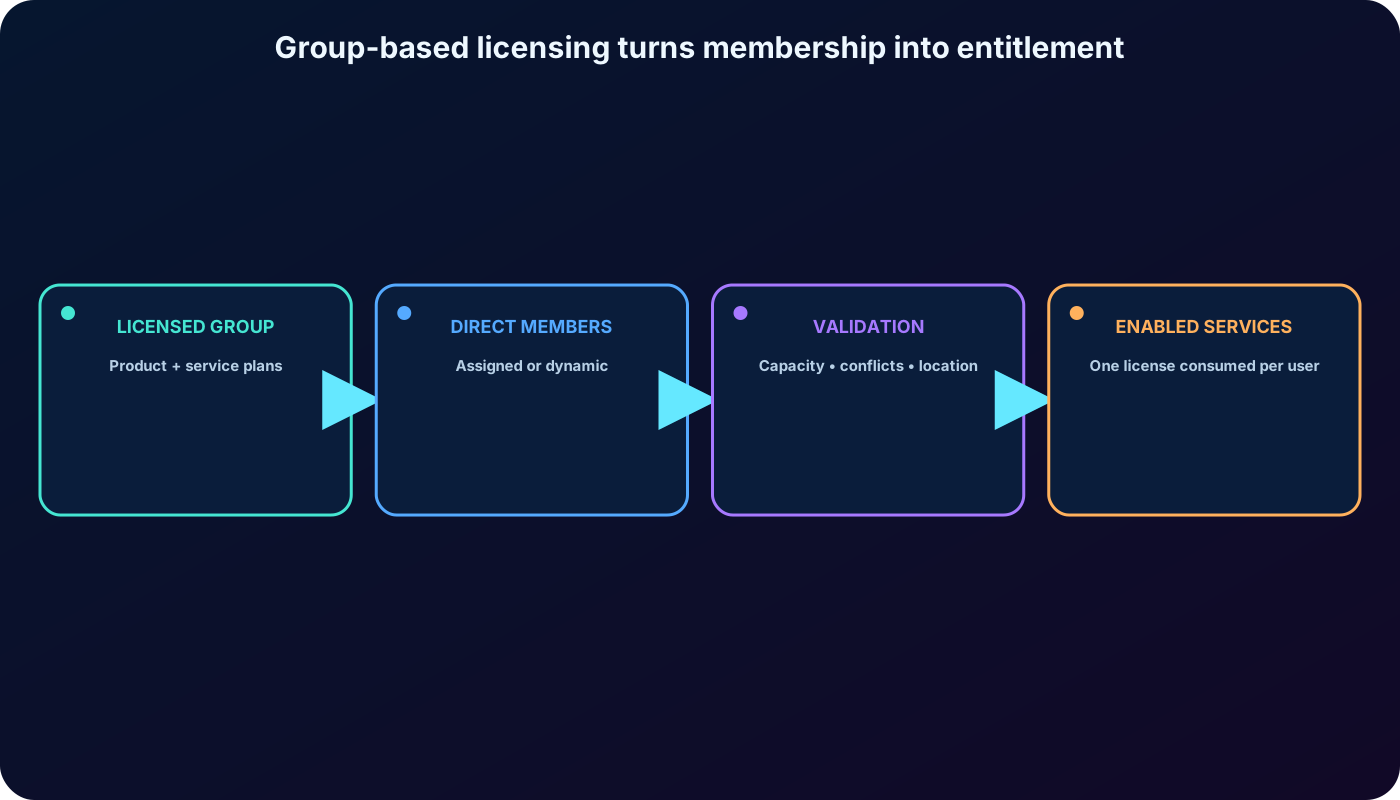
Group-based licensing assigns one or more product licenses to a group. New members inherit them and departing members lose the inherited assignment, eliminating per-user scripts for ordinary organizational moves. Direct and inherited assignments can coexist; the same product granted through multiple sources consumes one license.
Maintain enough purchased licenses for every unique user covered by licensed groups; assignment through a group does not remove the licensing obligation.
Security, mail-enabled, and Microsoft 365 groups can support current group-based licensing scenarios; nested groups do not pass a license to deeper members.
A product can have individual service plans disabled—for example, temporarily withholding Viva Engage while deploying the rest of Microsoft 365.
Membership-driven changes are processed automatically, usually within minutes but potentially longer for very large groups or high load.
Set Usage location during user creation. Without it, group licensing inherits the tenant location, which can assign a service incorrectly where availability or regulation differs.
The export lists Premium P1 or Office 365 Enterprise E3 trial/paid subscriptions as group-licensing prerequisites. Current entitlements and product names can change; confirm them in the Microsoft licensing documentation before procurement.
A group expresses licensing intent; Microsoft Entra preserves that intent and records per-user processing errors until the administrator corrects the cause.
12. Diagnose group-license assignment errors
Error states and corrective actions covered by the module.
Problem
PowerShell/error signal
Resolution
Insufficient licenses
CountViolation
Purchase capacity or release unused assignments, then reprocess.
Mutually exclusive plans
MutuallyExclusiveViolation
Remove or disable the conflicting direct or group service plan. E1 Plan 1 and E3 Plan 2 examples include Exchange Online and SharePoint Online.
Missing prerequisite
DependencyViolation
Keep the prerequisite assigned elsewhere or disable the dependent add-on before removal.
Unsupported usage location
ProhibitedInUsageLocationViolation
Correct Usage location or remove the user from a group whose product is unavailable there.
Duplicate proxy address
Proxy address already in use
Make mail proxy addresses unique, then reprocess the user or group.
Concurrent assignment
LicenseAssignmentAttributeConcurrencyException
Microsoft Entra retries automatically; no customer action is normally required.
License updates can recalculate Mail and ProxyAddresses. Review audit logs when those attributes change. A multi-product group is processed as a unit: if business logic blocks one product, the other products in that group can also remain unassigned until the error is fixed.
Before deleting a licensed group, remove its licenses and allow processing to finish. If removal would break a directly assigned add-on—Audio Conferencing depending on a Skype for Business plan is the module’s example—the prerequisite license can be converted from inherited to direct instead of being removed.
Add-ons must travel with a prerequisite. The historical example pairs Microsoft Workplace Analytics with Exchange Online Plan 1 or 2, perhaps through a minimal E3 group plus the add-on. Product names and dependencies evolve, but the durable rule is to model prerequisite and dependent service plans together.
13. License exercises, reprocessing, and safe migration
To change a group assignment, inspect Groups > the group > Licenses in the Microsoft Entra admin center, then update it under Billing > Licenses in the Microsoft 365 admin center. Assign the product to the selected group and verify the resulting state in both portals. `Set-MgGroupLicense` and `Set-MgUserLicense` provide automation through Microsoft Graph PowerShell.
After fixing capacity, conflict, prerequisite, location, or proxy-address data, use Reprocess on the group or user when automatic processing has not completed. The concurrency exception is different: the service retries it itself.
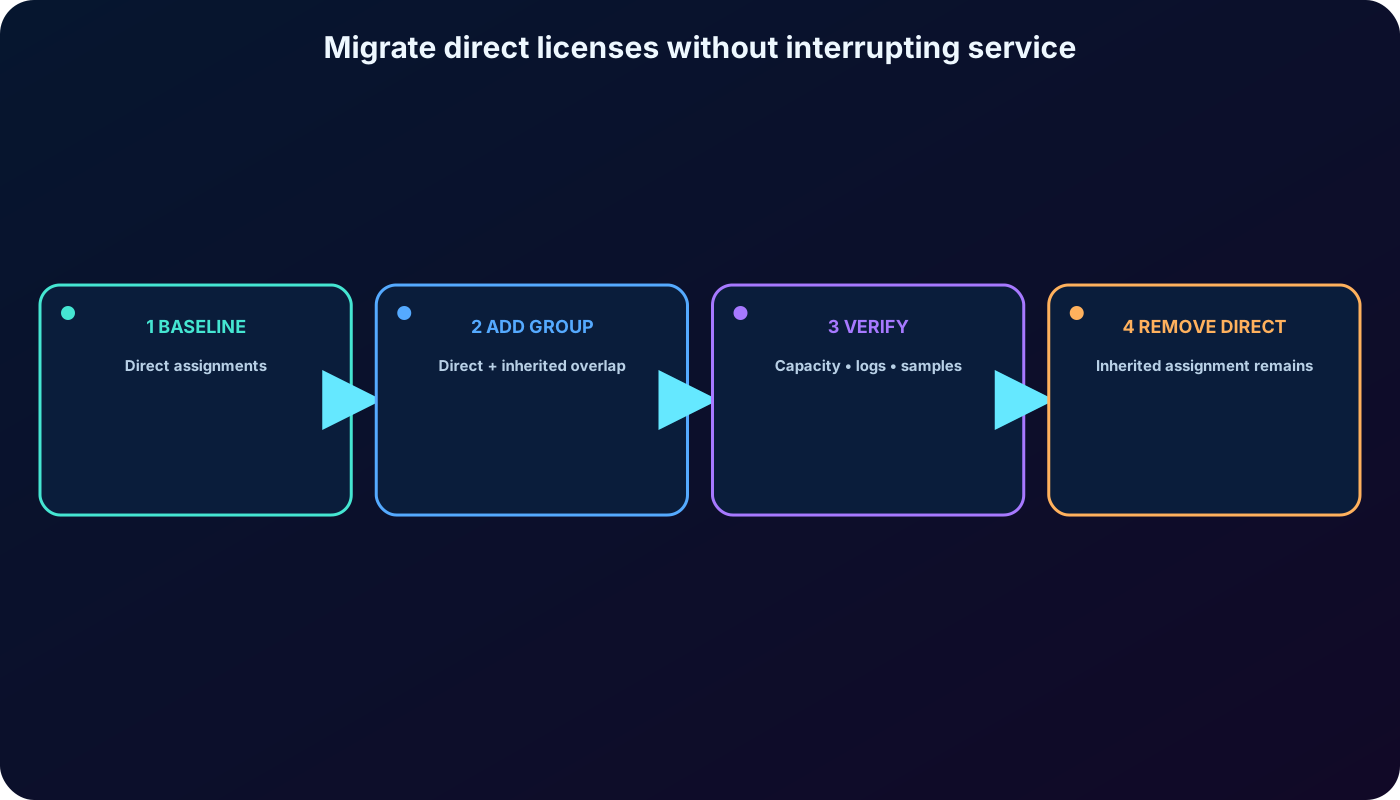
Migrate direct licenses to group-based licensing without an outage
Leave the existing direct-assignment automation running.
Create or select licensing groups and add the intended users.
Assign equivalent products and service plans to the groups.
Verify group processing, audit logs, and a sample of users. During overlap, users show both direct and inherited sources but consume one product license.
Resolve every user in an error state.
Remove direct assignments gradually and monitor a pilot before expanding.
The module’s example migrates 1,000 Office 365 Enterprise E3 users from an on-premises PowerShell script to an All users licensing group. Never remove the old assignment before the inherited state is confirmed. When moving E1 to E3, add and remove plans in the same operation, verify capacity and dependencies, and change membership at the authoritative source for synchronized or dynamic groups.
The individual-user exercise creates Dominique Koch with user name DominiqueK, a unique password, and a valid Usage location. In the Microsoft 365 admin center, select Billing > Licenses > the product > Assign licenses, add the user, and verify the license on the user profile in Microsoft Entra.
An overlap period preserves service and data while administrators prove that inherited assignments are complete and error-free.
14. Custom security attributes
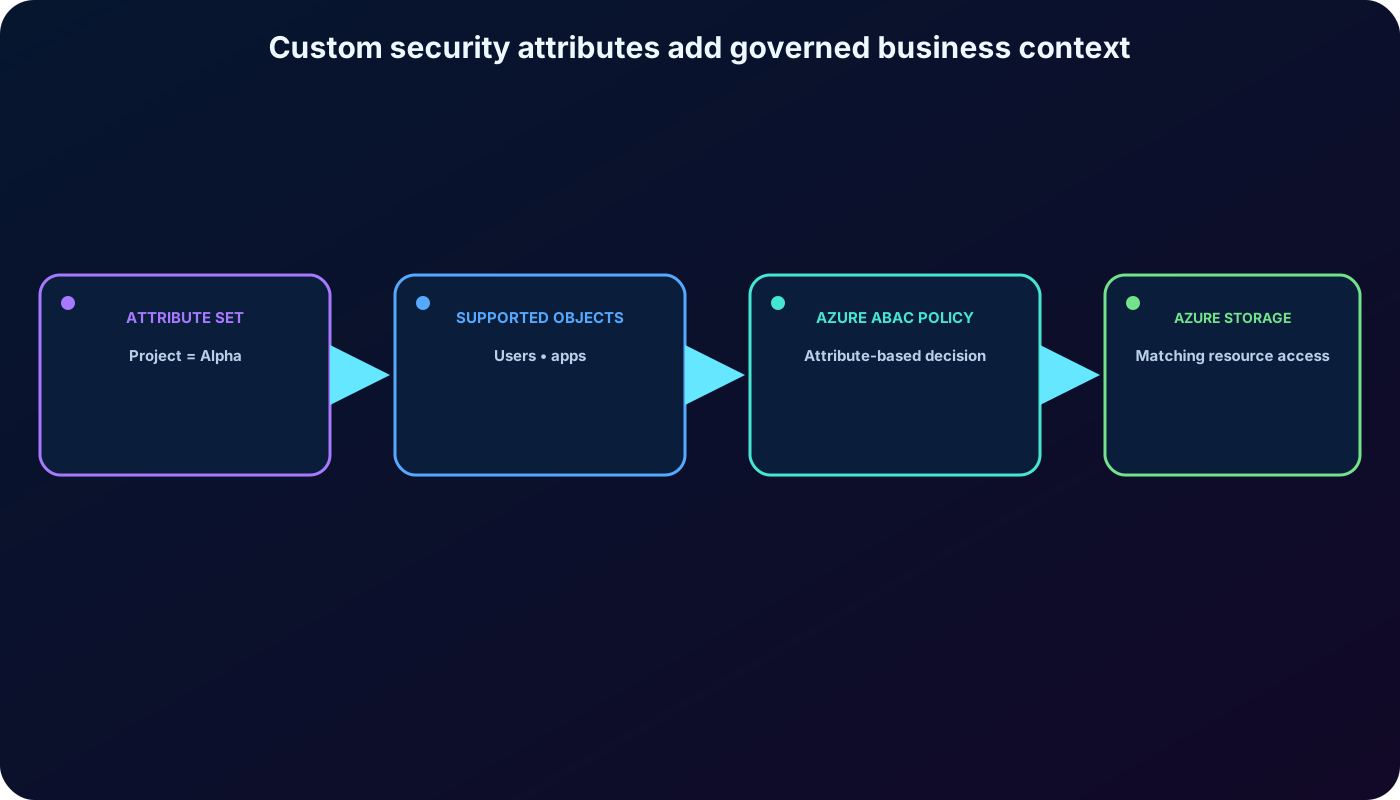
Custom security attributes are tenant-wide, business-specific key-value pairs assigned to supported Microsoft Entra objects. They can store information, classify users or applications, improve searchable audit inventory, and drive fine-grained Azure attribute-based access control (ABAC).
Extend a profile with sensitive information such as an hourly salary while delegating who can read or assign it.
Categorize a large application inventory for queries, filters, and audits.
Grant access to Azure blobs whose resource attributes match a project attribute.
Define descriptions; Boolean, integer, or string types; single or multiple values; and free-form or predefined allowed values.
Assign attributes to users—including synchronized users—and enterprise applications represented by service principals.
Attribute governance separates definition, assignment, and read permissions. Custom security attributes are not emitted automatically as SAML or JSON Web Token (JWT) claims and are not supported by . Do not confuse them with general directory extensions or assume that adding metadata grants access without an ABAC policy.
Custom security attributes describe business context; separately governed access policies decide how that context authorizes a request.
15. Automatic provisioning with SCIM and inbound APIs
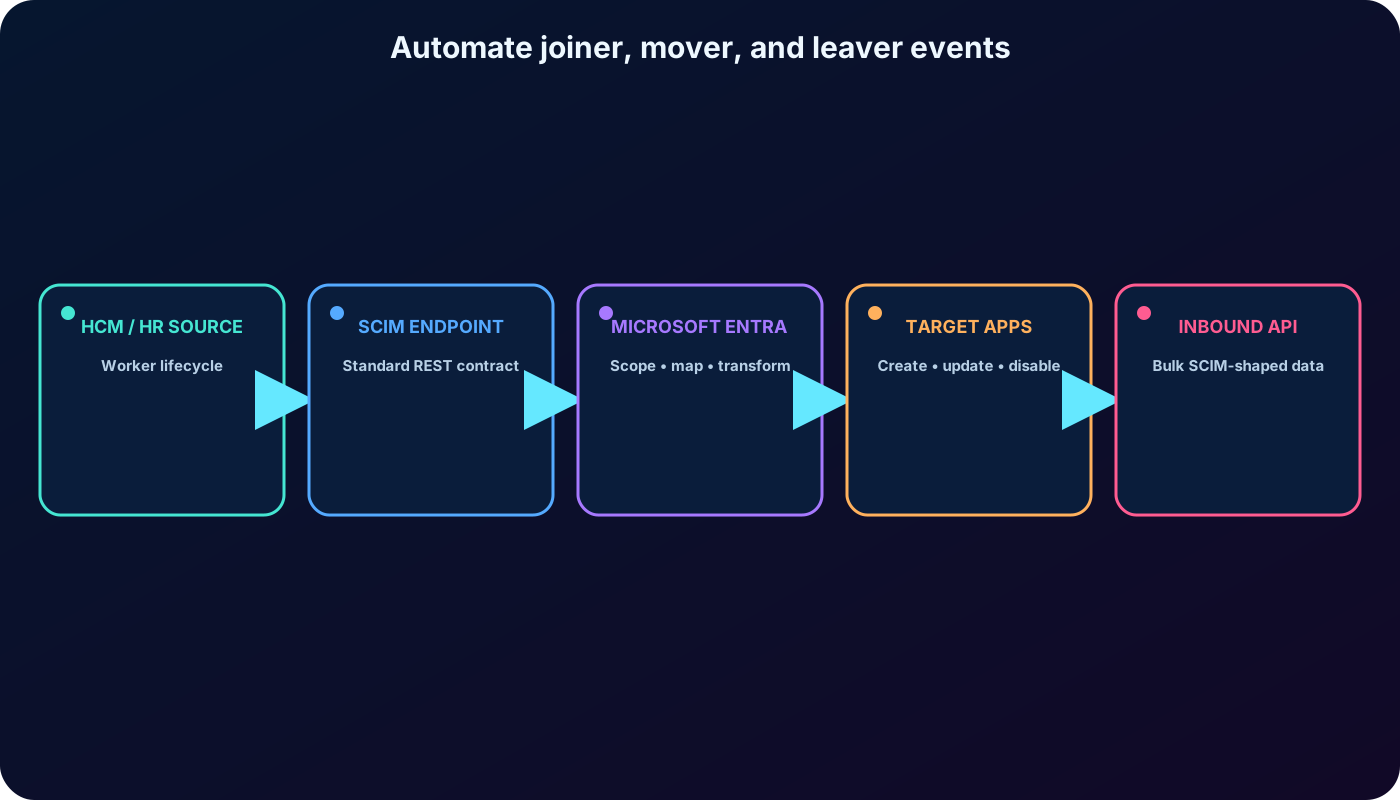
System for Cross-Domain Identity Management (SCIM) 2.0 standardizes user and group lifecycle exchange. A human capital management (HCM) system acts as an authoritative workforce source; the Microsoft Entra provisioning service connects to a target SCIM endpoint; holds identities and entitlements; and the target application receives creates, updates, group changes, and deprovisioning through REST and the SCIM schema.
keeps identity state aligned with employment status and role. A new employee can receive accounts, a transfer can update attributes and access, and a departure can trigger rapid deprovisioning instead of leaving a stale account that could be abused.
Not every HR platform exposes SCIM. API-driven inbound provisioning lets an automation tool read Workday, SAP SuccessFactors, a custom HR system, database, file, or other system of record and send SCIM-shaped bulk data to the Microsoft Entra provisioning API. The service applies administrator-defined scoping, mappings, and transformations asynchronously before creating, updating, enabling, or disabling identities in or supported on-premises Active Directory targets.
The supplied module notes that API-driven inbound provisioning reached general availability in March 2024. It is now an established capability, but license requirements, mappings, payload limitations, and source integrations should be checked in current documentation.
SCIM standardizes the lifecycle contract; the API-driven path accepts bulk workforce data from systems that do not expose a SCIM service.
16. Explained module assessment
The nine supplied questions, rewritten with their reasoning.
Question
Best answer
Why
Which group serves a shared mailbox, calendar, and files?
Microsoft 365 group.
Its purpose is collaboration; a security group primarily controls permissions.
How do custom attributes assist audits?
They add metadata for categorizing and filtering objects or access evidence.
The attribute does not create every report or guarantee that all activity is logged.
How should an E3 versus E1 plan conflict be handled?
Disable or remove the redundant E1 plan or the conflicting service plans.
Microsoft Entra does not decide which product the organization intends to keep.
What should be done for LicenseAssignmentAttributeConcurrencyException?
Allow to retry.
This concurrent-processing condition normally resolves automatically.
How is MutuallyExclusiveViolation corrected?
Remove the conflicting license or service plan.
More capacity or a direct assignment does not resolve an incompatible pair.
Security group versus Microsoft 365 group?
Permissions versus collaboration resources.
Their members can overlap, but the group purpose differs.
Primary access benefit of custom security attributes?
Fine-grained control based on business logic.
The attribute can participate in ABAC and governed filtering.
What should immediately follow account creation in the supplied scenario?
The module expects assignment of the required product license.
Technical caveat: a license enables a service; Azure authorization still requires RBAC or another access grant, and MFA strengthens authentication.
How do custom attributes help manage organizational roles?
They capture business-specific information used for categorization and policy.
They do not automatically place every user in a predefined group.
17. Chapter summary and official resources
Create user objects in the correct tenant, distinguish cloud, synchronized, and guest origins, and use the 30-day deleted-user recovery window carefully.
Use security groups for permission boundaries and Microsoft 365 groups for collaboration; govern assigned and dynamic membership appropriately.
Select registered, joined, or hybrid joined device identity according to ownership, sign-in authority, management, and legacy dependencies.
Prefer group-based licensing for repeatable lifecycle management, but validate capacity, location, conflicts, prerequisites, proxy addresses, and processing state.
Use governed custom security attributes for classification and Azure ABAC, not as automatic token claims.
Automate joiner, mover, and leaver processes through SCIM or API-driven inbound provisioning.